> ## Documentation Index
> Fetch the complete documentation index at: https://docs.insighto.ai/llms.txt
> Use this file to discover all available pages before exploring further.
# Campaigns
The **Campaigns** feature helps you automate outreach to your contacts by scheduling voice calls using an AI voice agent.
***
## ✅ Prerequisites
Before creating a campaign, make sure you have the following:
* A **voice agent** deployed on a phone number through a supported provider like **Twilio**, **Plivo**, or **Telnyx**.
* A list of **leads (contacts)** you want to reach out to during the campaign.
***
## 👥 Add Contact in Insighto
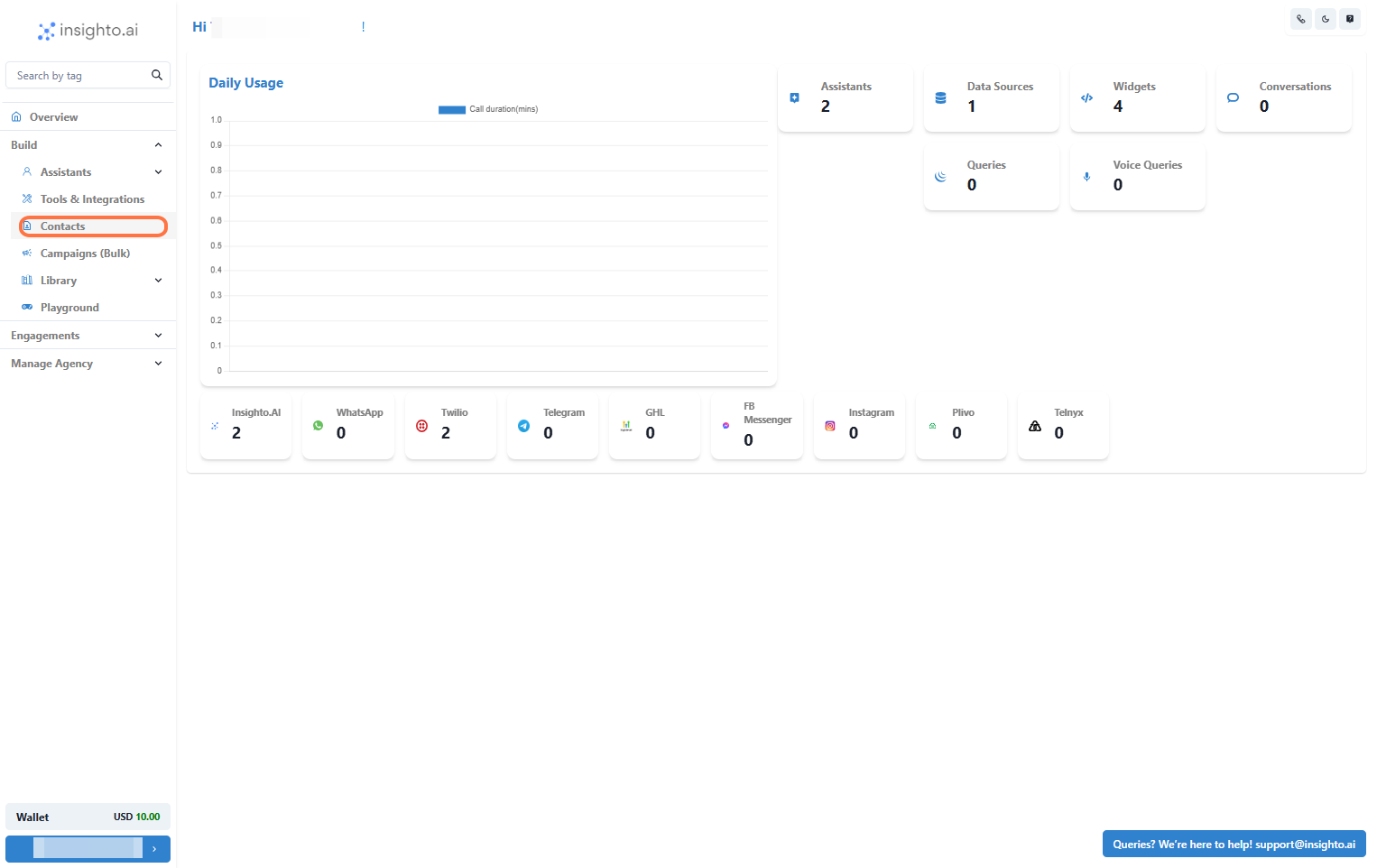
1. Go to Contacts Section
From the left panel, click on **Contacts**.
 ***
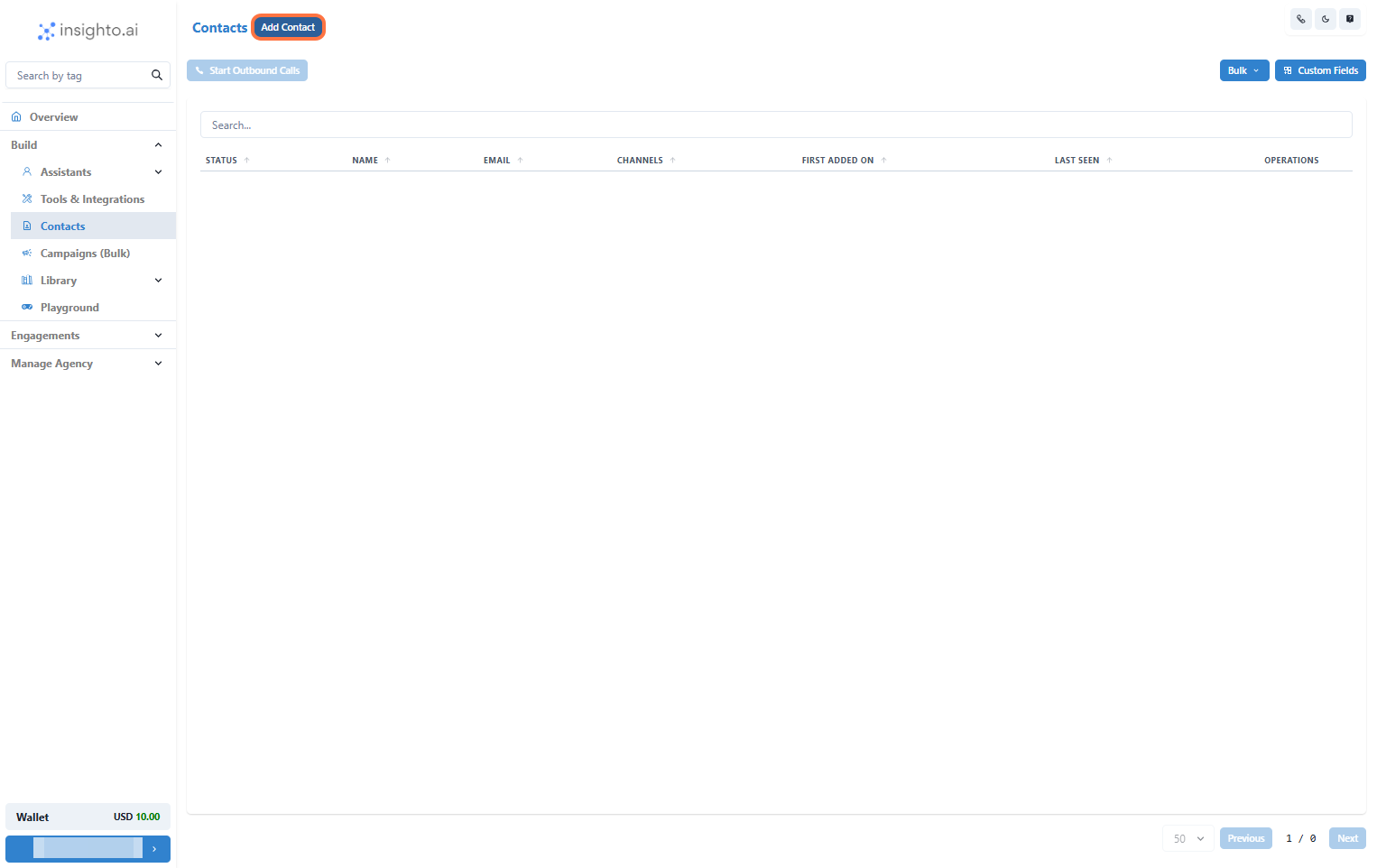
2. Add a Single Contact
Click on **Add Contact** to upload a single contact.
***
2. Add a Single Contact
Click on **Add Contact** to upload a single contact.
 ***
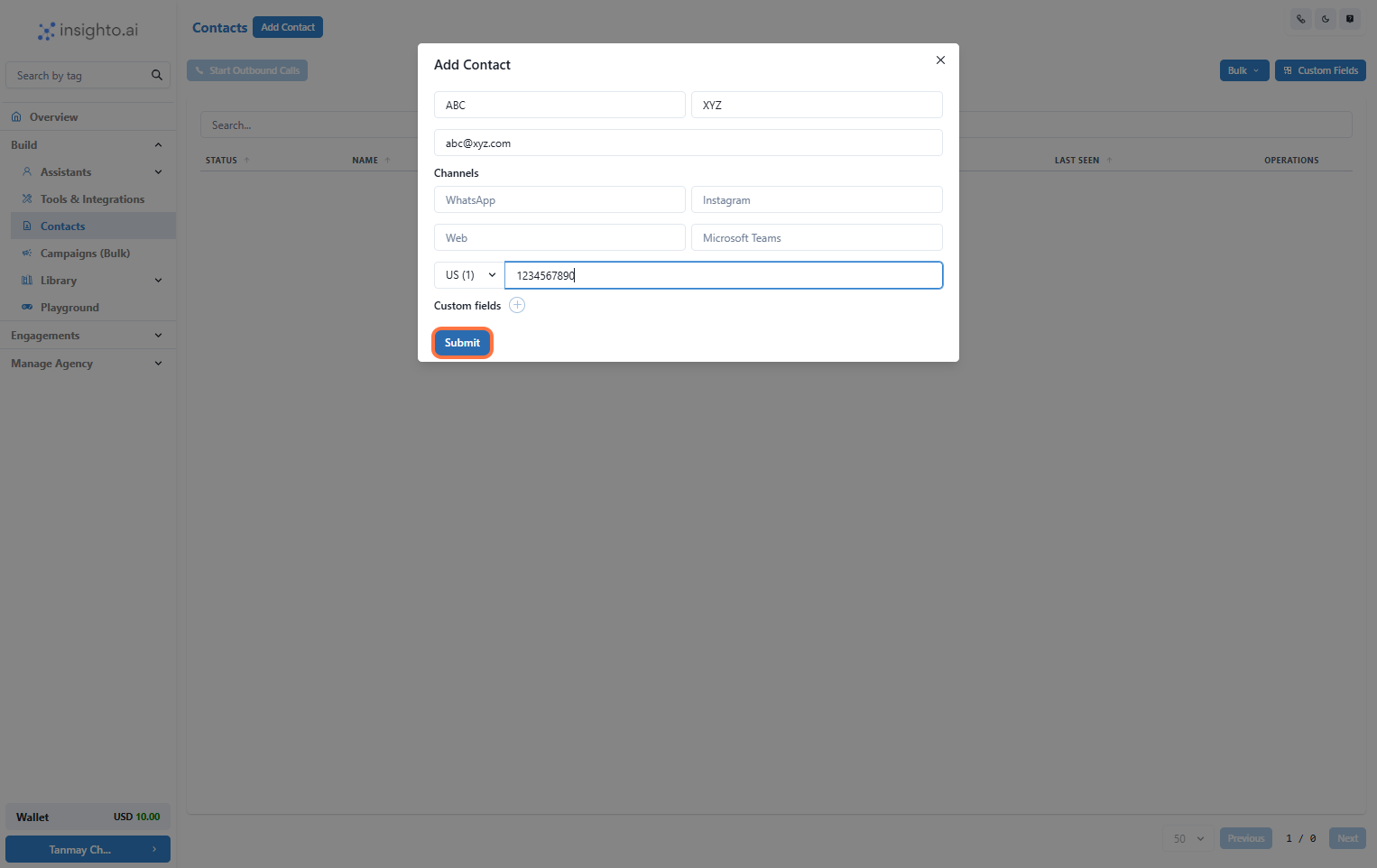
3. Enter the Details & Click on Submit
Fill out the contact details in the form, then click **Submit**. A new contact will be created in the platform.
***
3. Enter the Details & Click on Submit
Fill out the contact details in the form, then click **Submit**. A new contact will be created in the platform.
 ***
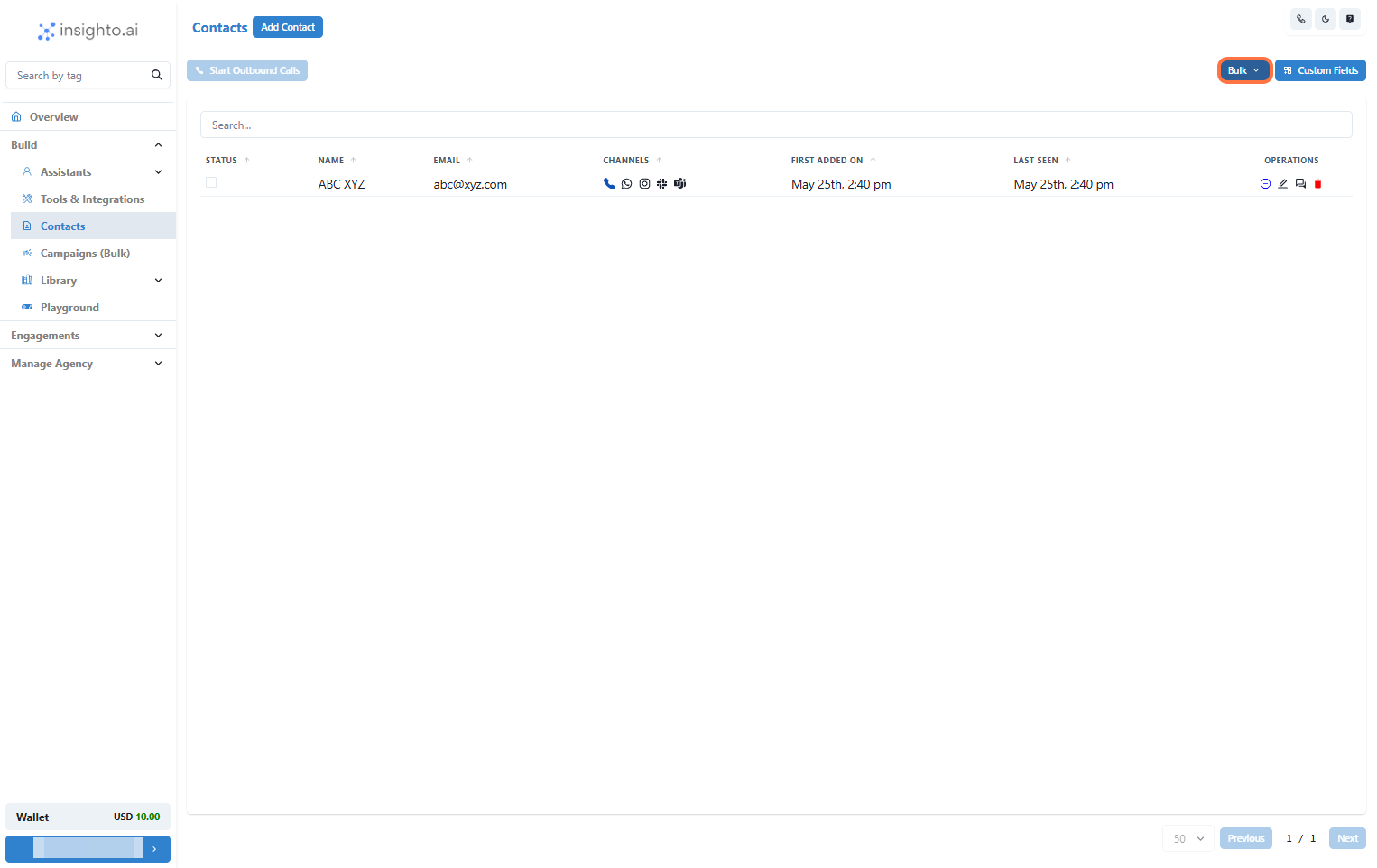
4. Upload Contacts in Bulk
Click on **Bulk** to import contacts using a CSV file.
***
4. Upload Contacts in Bulk
Click on **Bulk** to import contacts using a CSV file.
 ***
## 📞 Create Campaigns (5 Steps)
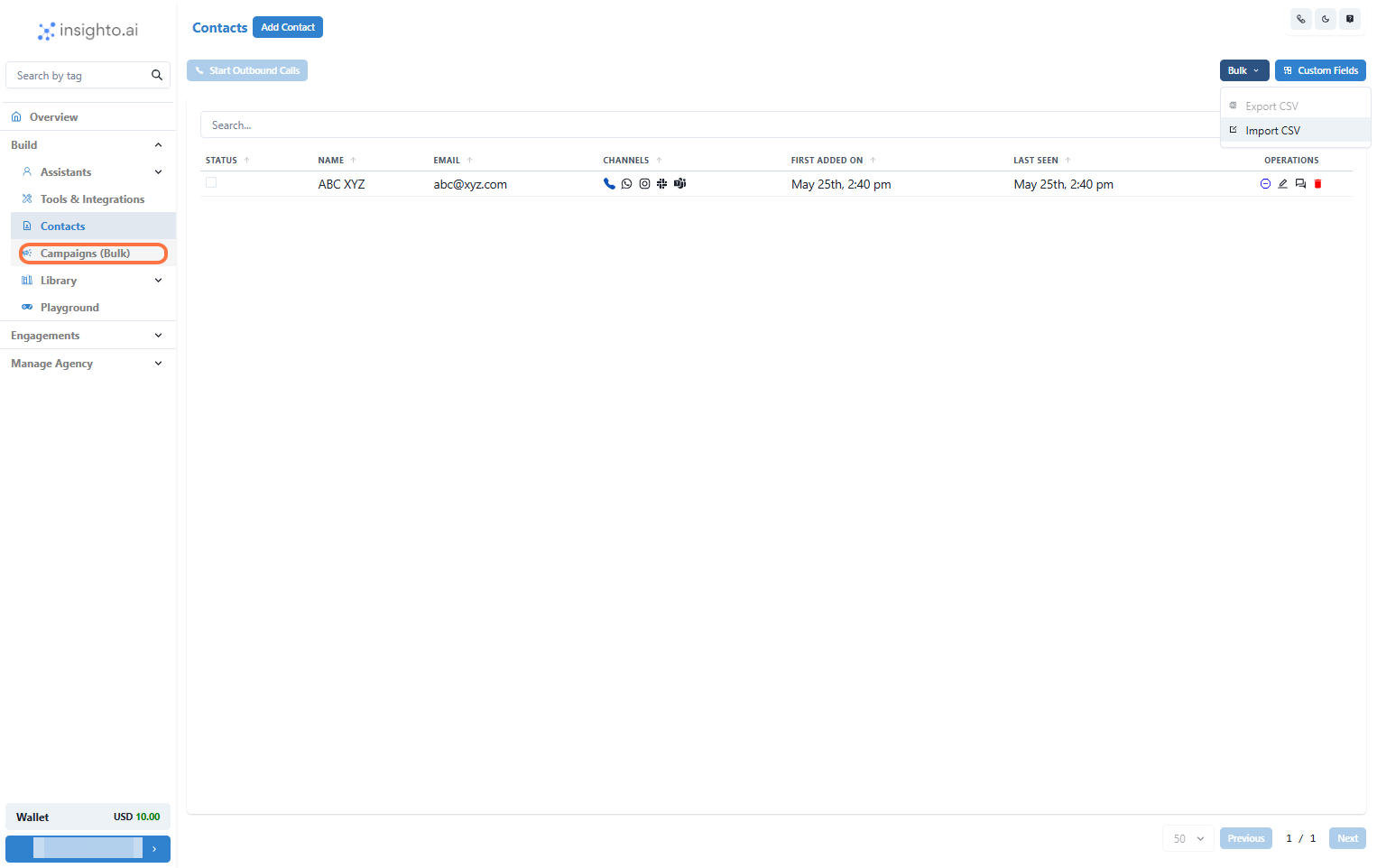
5. Go to Campaigns Section
Navigate to the **Campaigns** section from the left-hand panel.
***
## 📞 Create Campaigns (5 Steps)
5. Go to Campaigns Section
Navigate to the **Campaigns** section from the left-hand panel.
 ***
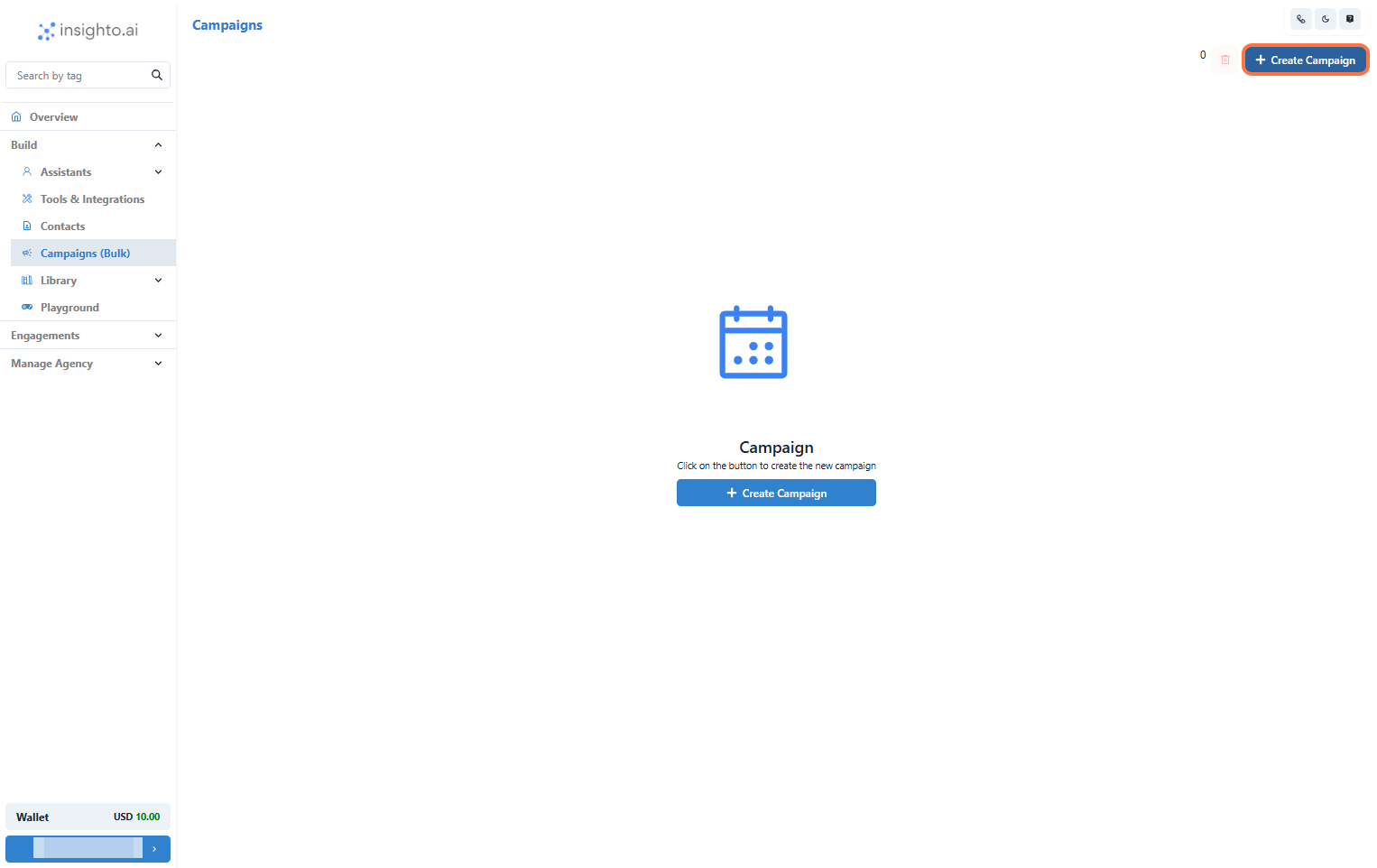
6. Click on Create Campaign
Click the **Create Campaign** button to start setting up a new campaign.
***
6. Click on Create Campaign
Click the **Create Campaign** button to start setting up a new campaign.
 ***
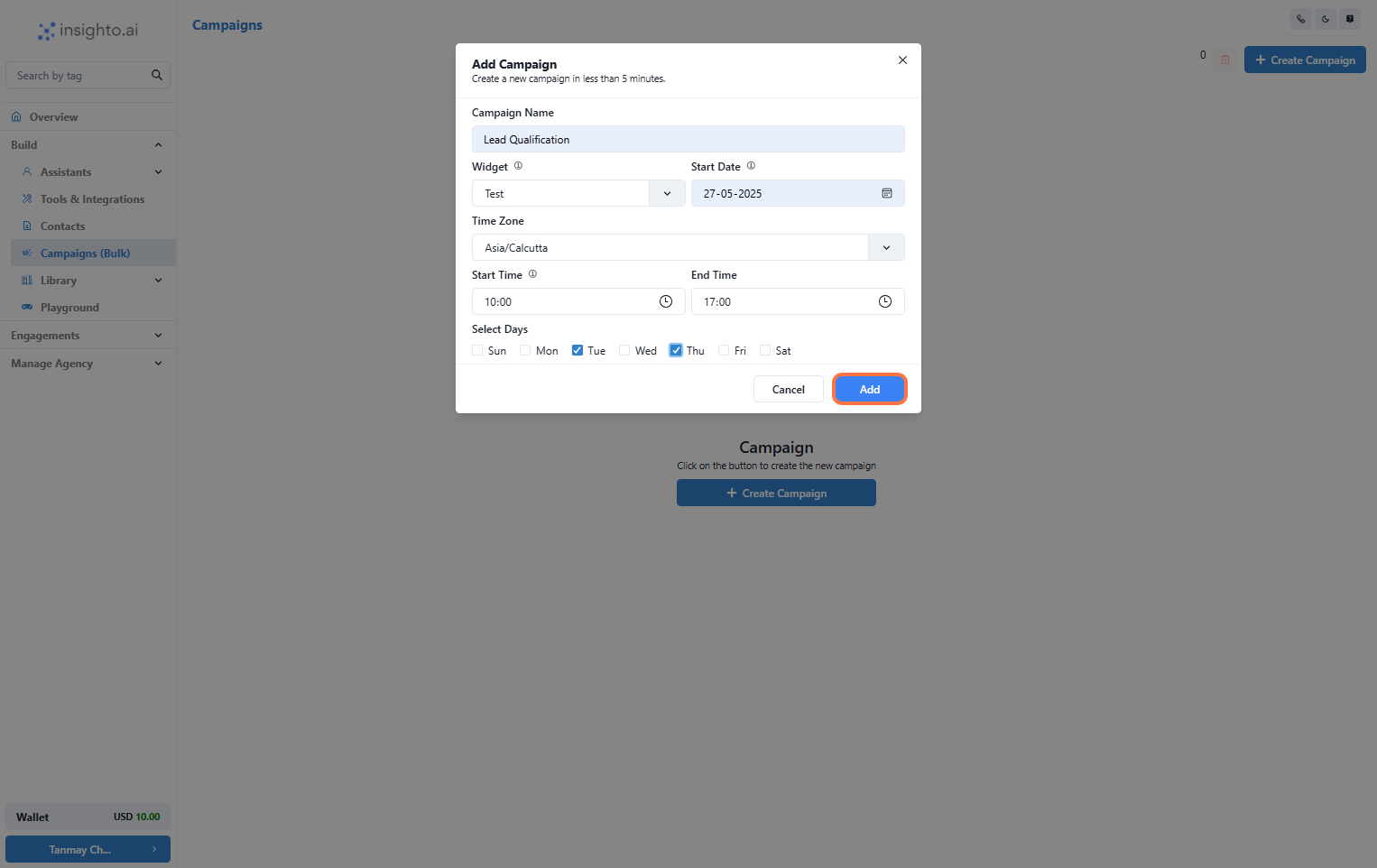
7. Enter the Details and Click on Add
* Name your campaign (e.g., "Lead Qualification Campaign")
* Select the **Voice Widget** you want to use for calling
* Set the **start date**, **time zone**, and **daily calling hours**
* Choose the **days of the week** for the campaign to run
* Click **Add**
***
7. Enter the Details and Click on Add
* Name your campaign (e.g., "Lead Qualification Campaign")
* Select the **Voice Widget** you want to use for calling
* Set the **start date**, **time zone**, and **daily calling hours**
* Choose the **days of the week** for the campaign to run
* Click **Add**
 ***
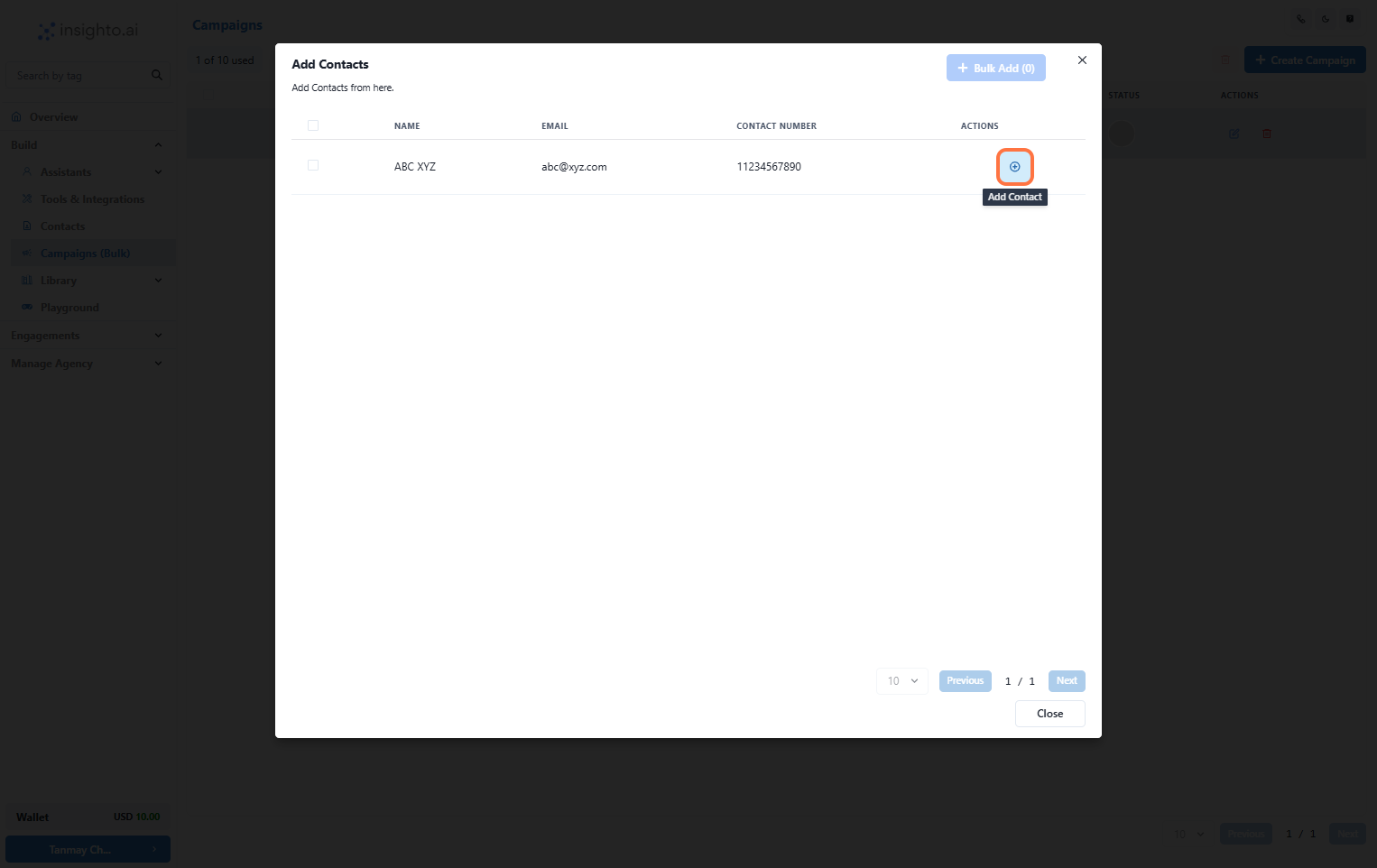
8. Select the Contacts and Click on Close
Choose the contacts you want to include in the campaign, then click **Close**.
***
8. Select the Contacts and Click on Close
Choose the contacts you want to include in the campaign, then click **Close**.
 ***
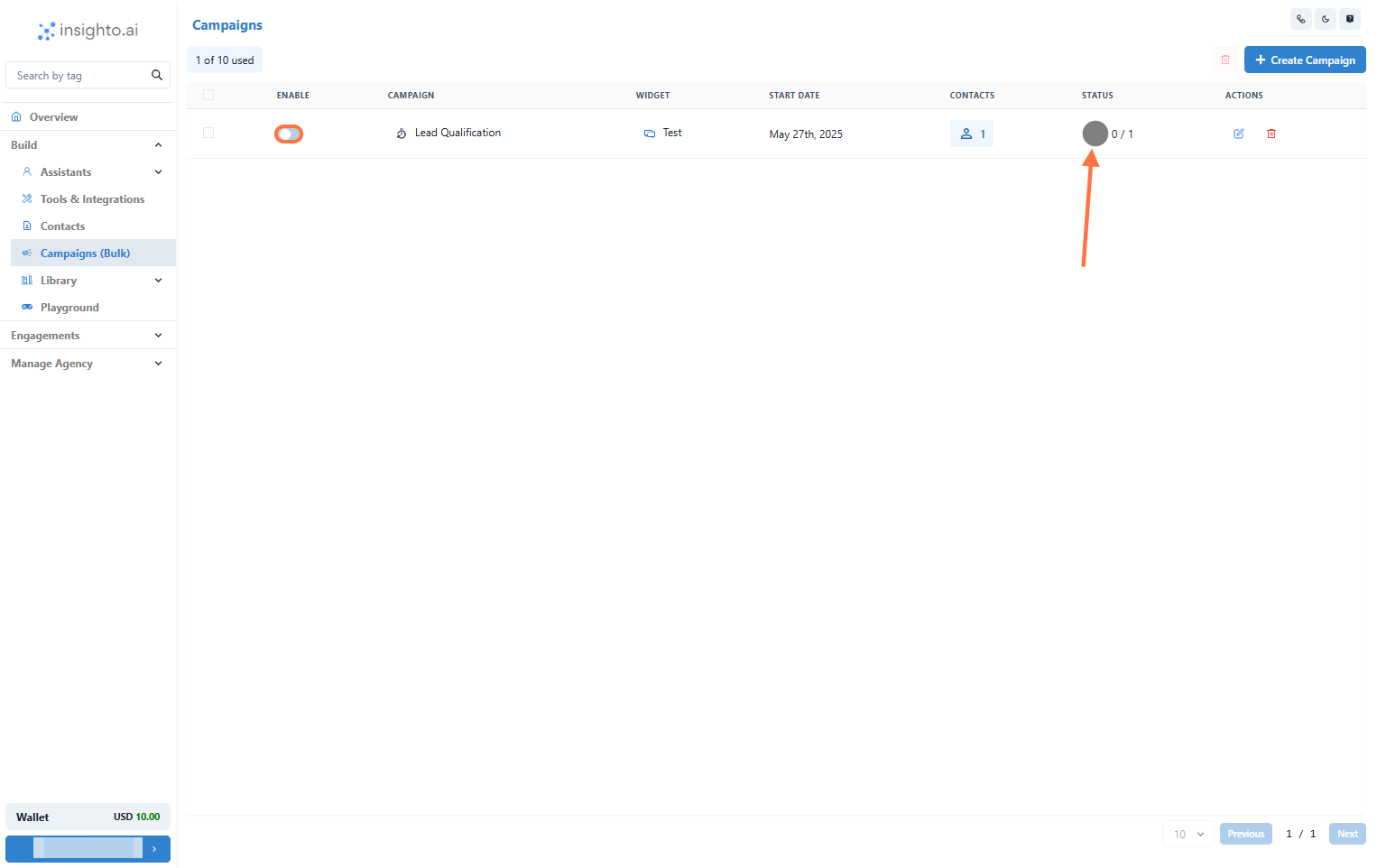
9. Enable and Monitor Your Campaign
Once your setup is complete:
* Toggle to **Enable** the campaign.
* It will run based on your defined schedule.
* Track the **status and performance** of the campaign in the interface.
***
9. Enable and Monitor Your Campaign
Once your setup is complete:
* Toggle to **Enable** the campaign.
* It will run based on your defined schedule.
* Track the **status and performance** of the campaign in the interface.
 ***
## 📊 After Campaign
10. Check the Conversations After Campaigns
You can:
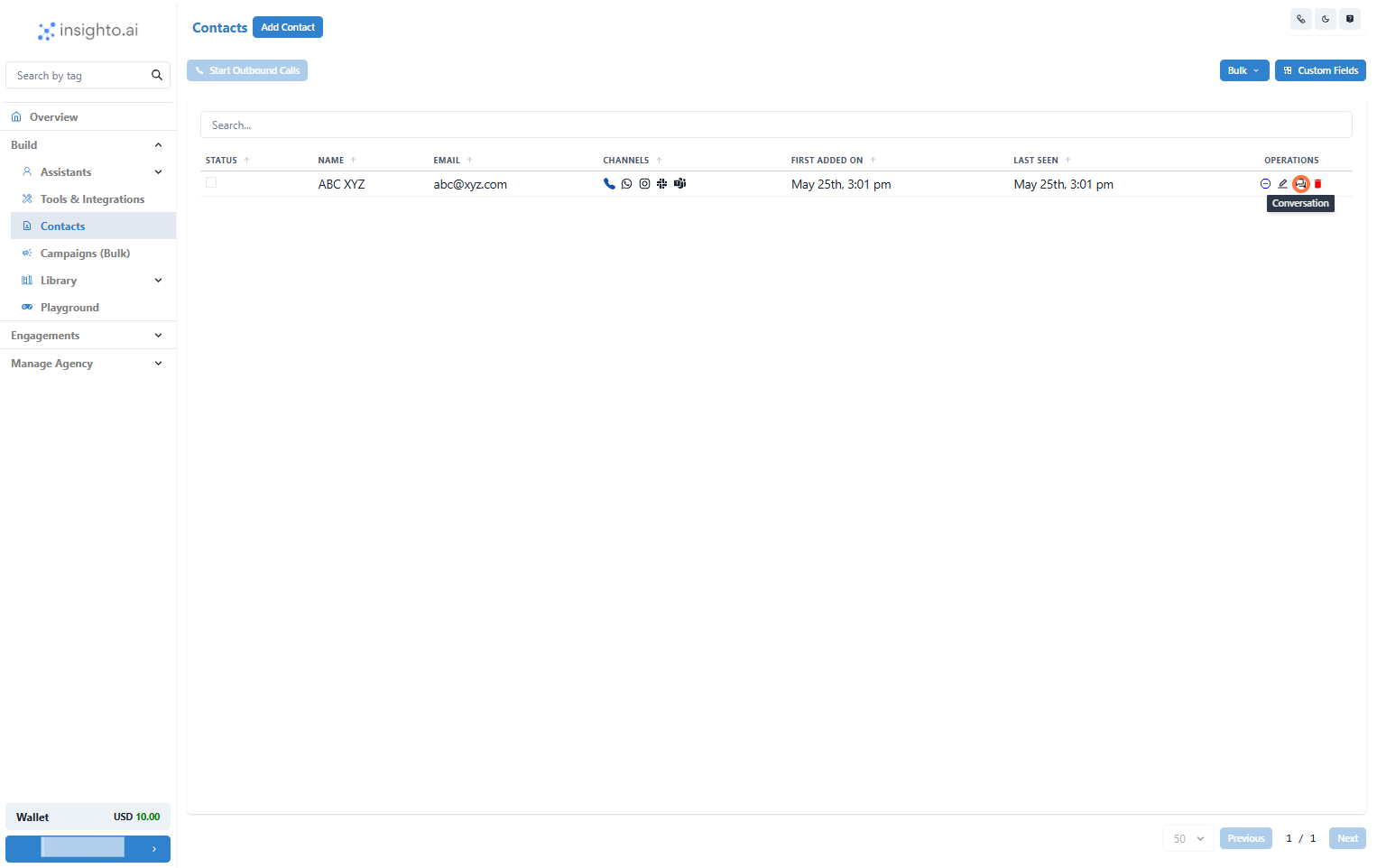
* Review conversations for a specific contact in the **Contacts** section, or
* Track all conversations in the **Engagement** section from the left panel.
***
## 📊 After Campaign
10. Check the Conversations After Campaigns
You can:
* Review conversations for a specific contact in the **Contacts** section, or
* Track all conversations in the **Engagement** section from the left panel.