> ## Documentation Index
> Fetch the complete documentation index at: https://docs.insighto.ai/llms.txt
> Use this file to discover all available pages before exploring further.
# Disconnect and Call Transfer Tool
This guide will walk you through the process of setting up the **Call Transfer** and **Disconnect** tools on your platform. The tools can be integrated with your phone assistant, enabling users to transfer ongoing calls to a specific number or disconnect them altogether. You’ll learn how to configure these actions based on user commands or predefined conditions, ensuring seamless and efficient call handling.
## 🚫 Disconnect Tool Setup
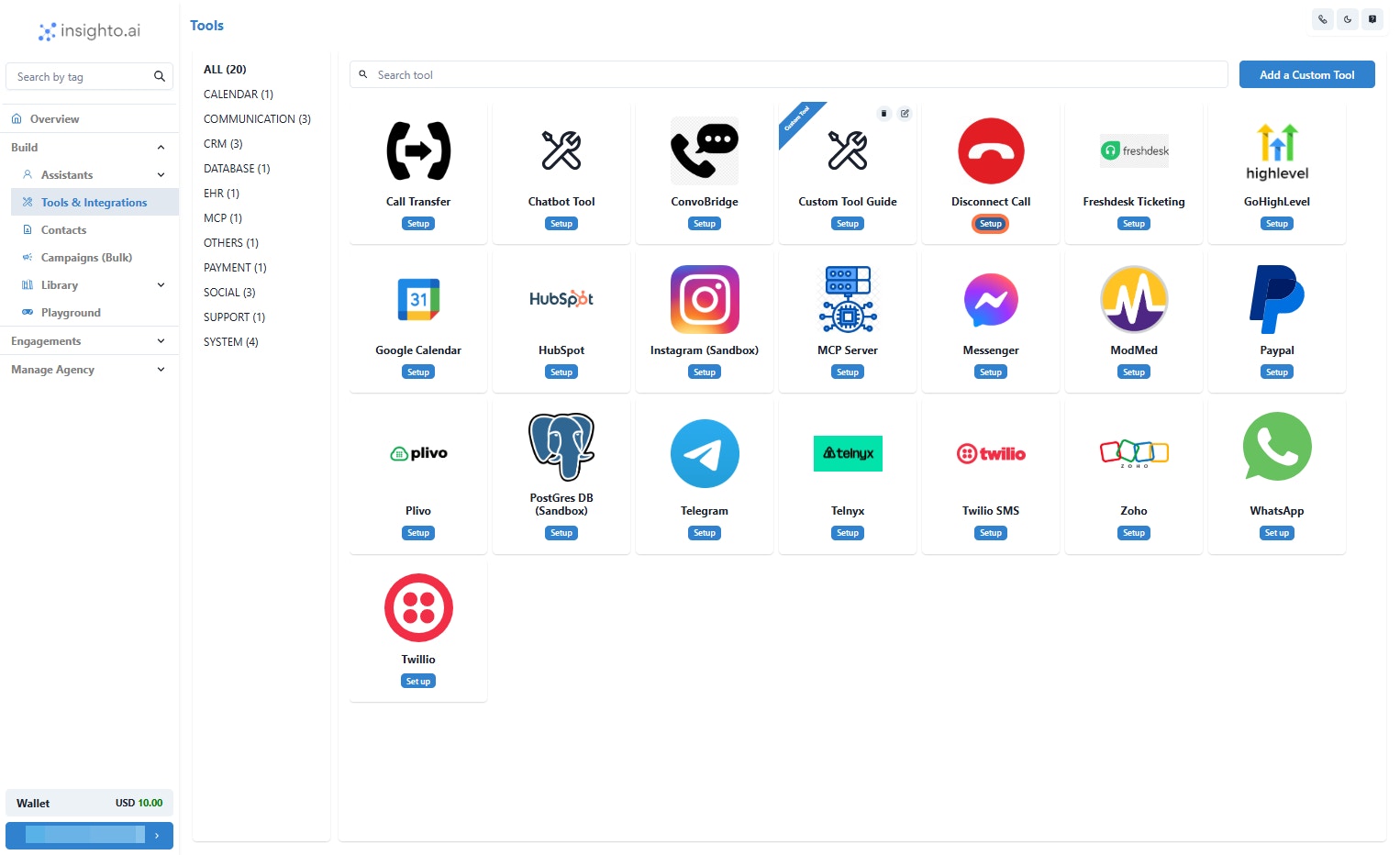
1. Go to Tools & Integration & Click on Setup
From the left-hand sidebar of your Insighto dashboard, click on **Tools & Integration**.
Locate the **Disconnect Tool** and click **Set Up**.
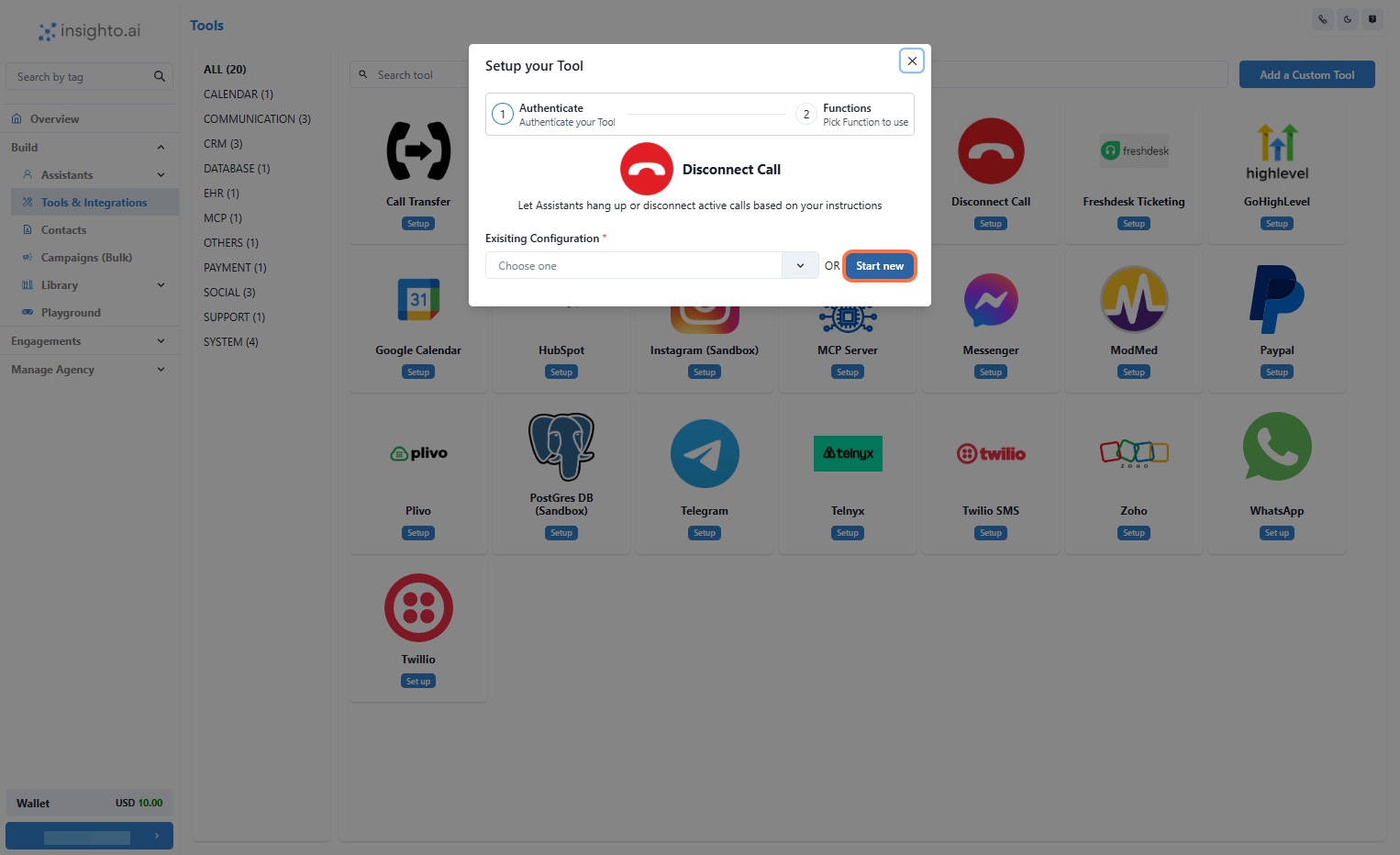
 2. Click on Start New
After clicking **Set Up**, a popup window will appear.
Click the **Start New** button to begin creating a new configuration.
2. Click on Start New
After clicking **Set Up**, a popup window will appear.
Click the **Start New** button to begin creating a new configuration.
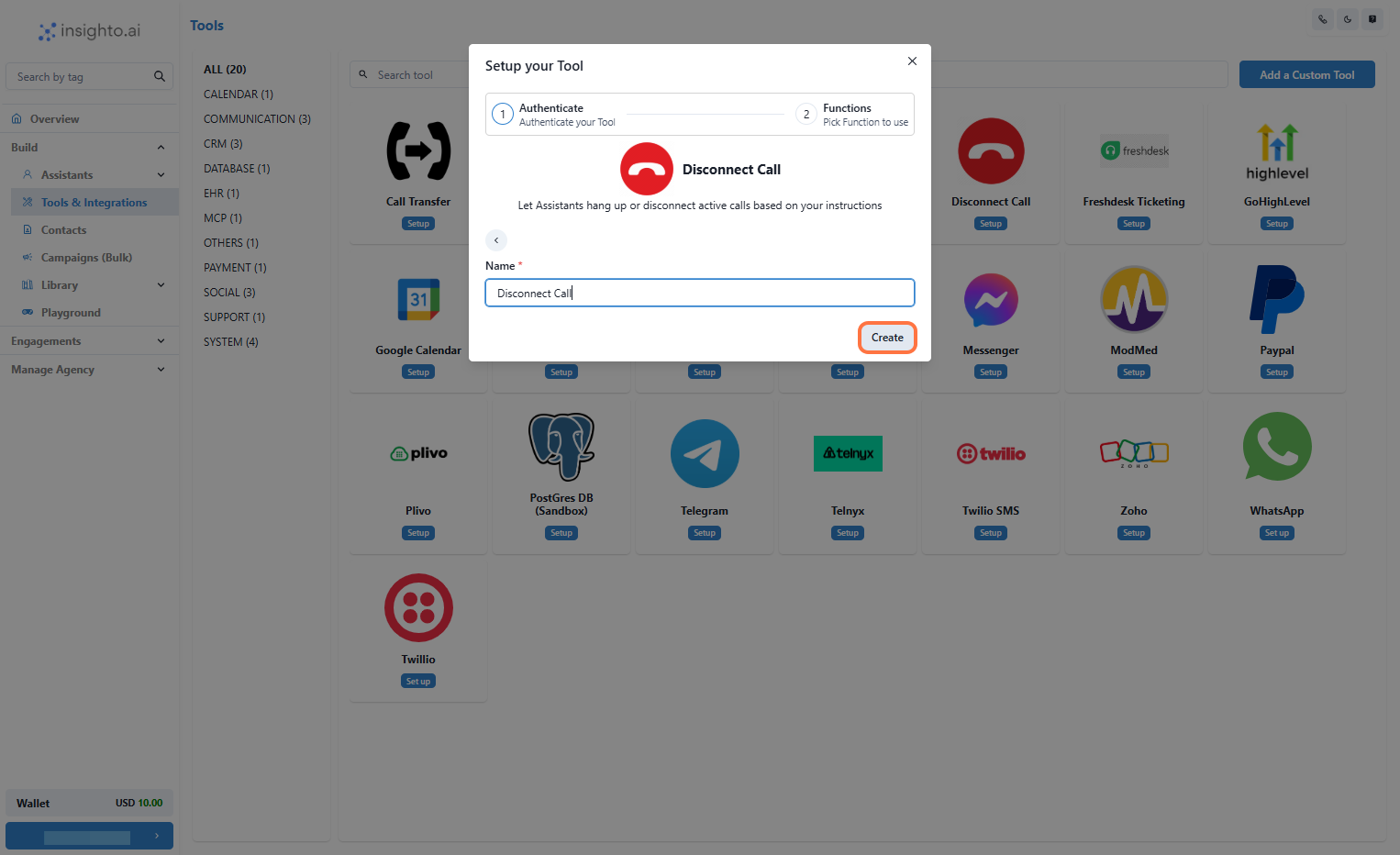
 3. Name Your Configuration and Click Create
Enter a name for your tool configuration.
Once you’ve entered the name, click **Create** to proceed.
3. Name Your Configuration and Click Create
Enter a name for your tool configuration.
Once you’ve entered the name, click **Create** to proceed.
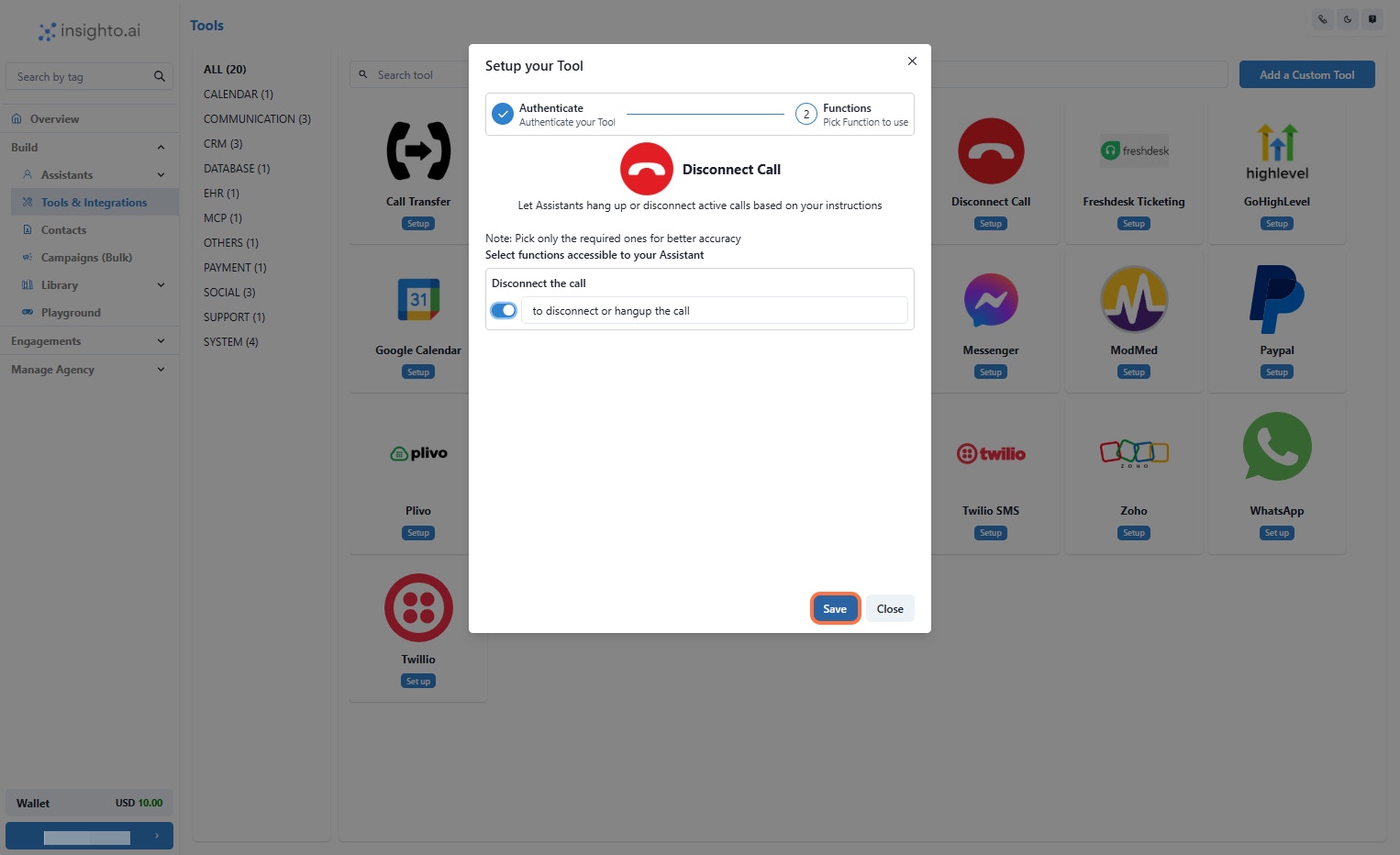
 4. Enable the Disconnect Call Function
In the configuration screen, toggle on the **Disconnect Call** function.
Click **Save** to finalize your tool setup. This will apply all your changes and complete the setup process.
4. Enable the Disconnect Call Function
In the configuration screen, toggle on the **Disconnect Call** function.
Click **Save** to finalize your tool setup. This will apply all your changes and complete the setup process.
 5. Connect with Phone Assistant & Add Instructions to Trigger the Tool
Add logic to your assistant to determine when to use the disconnect tool.
**Instruction Example:**
> If the user doesn't have any more queries, thank them and then disconnect the call using the available tool.
***
## 🔁 Call Transfer Tool Setup
6. Go to Tools & Integration & Click on Setup
From the left-hand sidebar of your Insighto dashboard, click on **Tools & Integration**.
Locate the **Call Transfer Tool** and click **Set Up**.
5. Connect with Phone Assistant & Add Instructions to Trigger the Tool
Add logic to your assistant to determine when to use the disconnect tool.
**Instruction Example:**
> If the user doesn't have any more queries, thank them and then disconnect the call using the available tool.
***
## 🔁 Call Transfer Tool Setup
6. Go to Tools & Integration & Click on Setup
From the left-hand sidebar of your Insighto dashboard, click on **Tools & Integration**.
Locate the **Call Transfer Tool** and click **Set Up**.
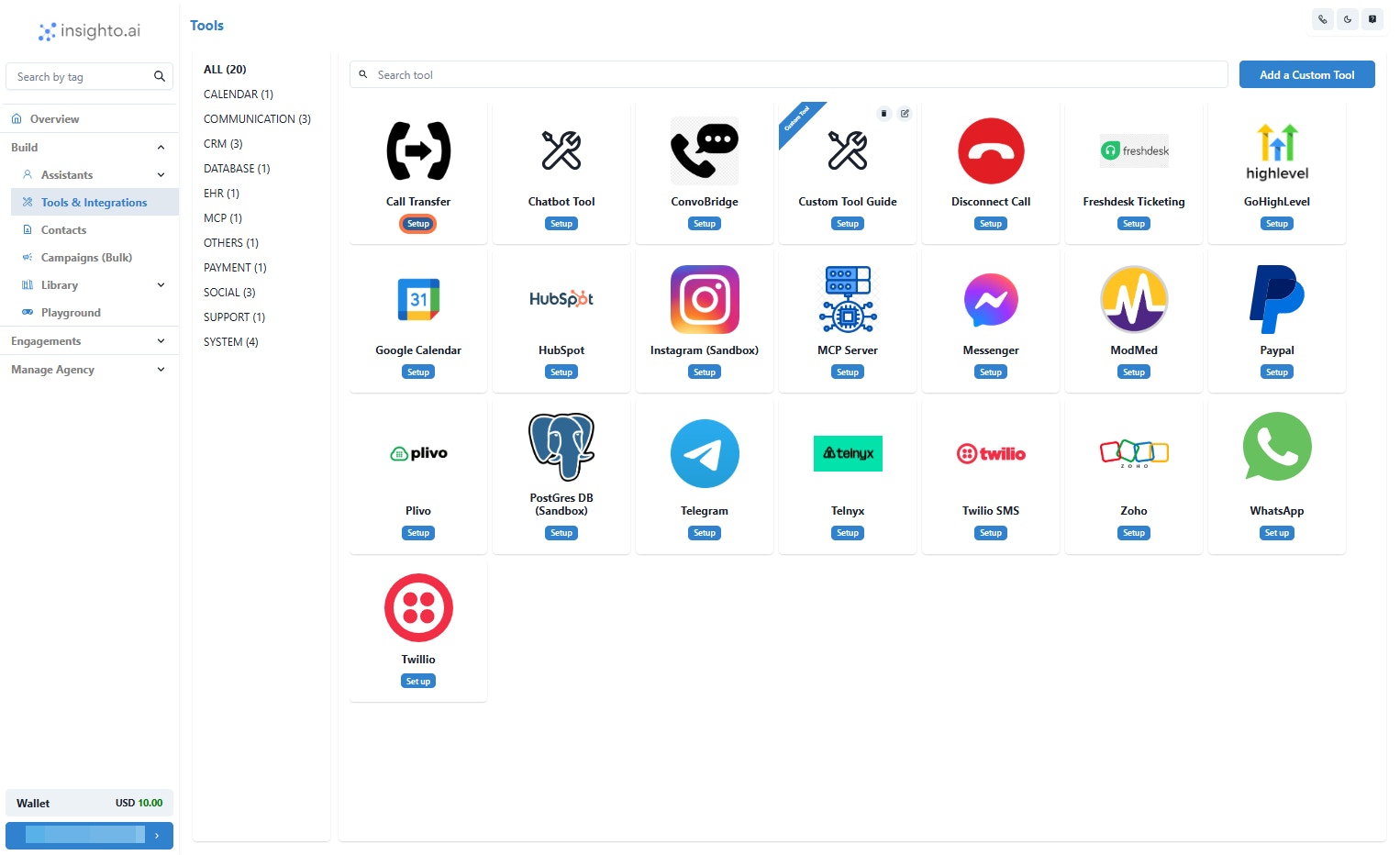 7. Click on Start New
After clicking **Set Up**, a popup window will appear.
Click the **Start New** button to begin creating a new configuration.
7. Click on Start New
After clicking **Set Up**, a popup window will appear.
Click the **Start New** button to begin creating a new configuration.
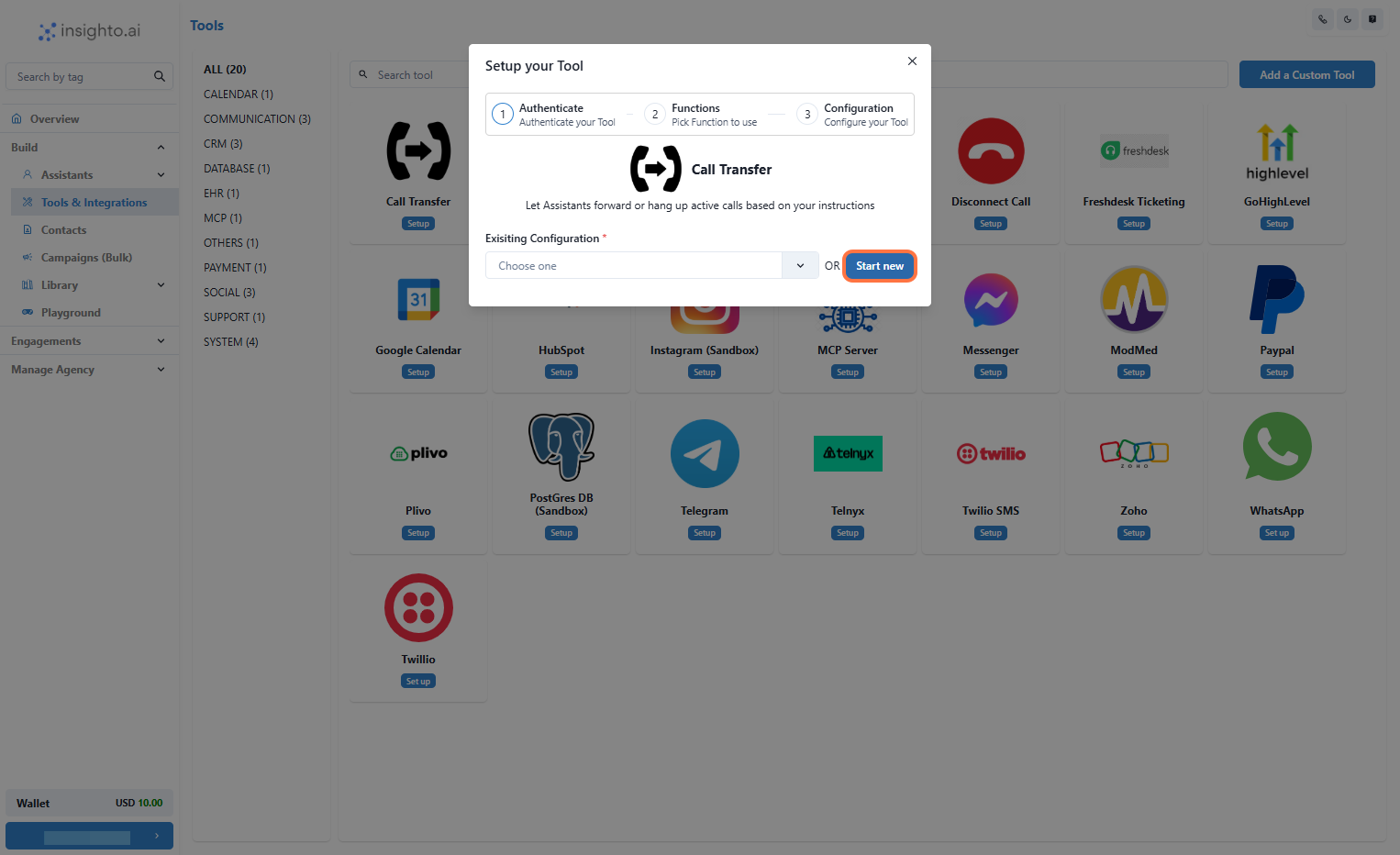 8. Name Your Configuration and Click Create
Enter a name for your tool configuration.
Once you’ve entered the name, click **Create** to proceed.
8. Name Your Configuration and Click Create
Enter a name for your tool configuration.
Once you’ve entered the name, click **Create** to proceed.
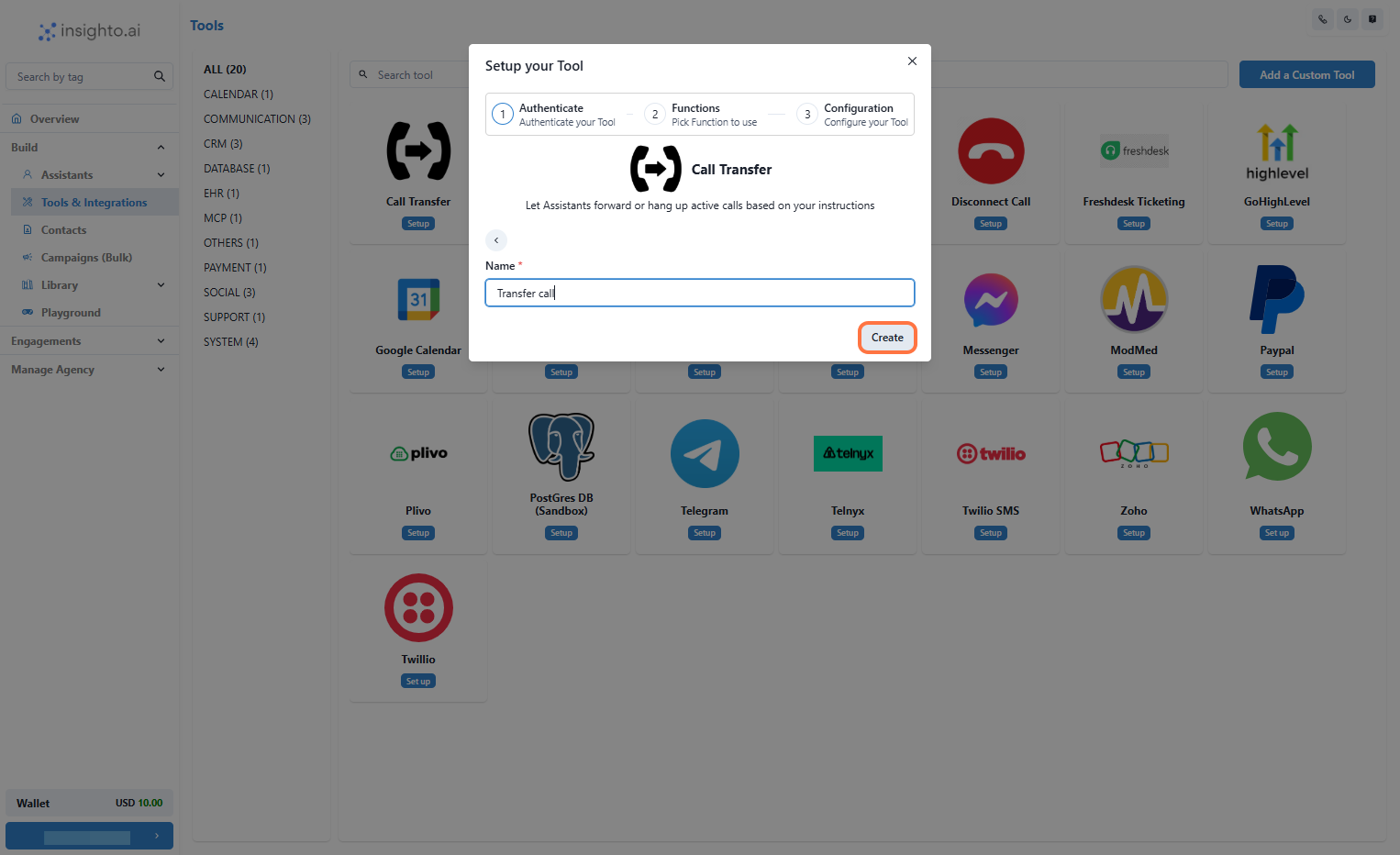 9. Enable the Forward Call Function
In the configuration screen, toggle on the **Forward Call** function.
Click **Save** to proceed.
9. Enable the Forward Call Function
In the configuration screen, toggle on the **Forward Call** function.
Click **Save** to proceed.
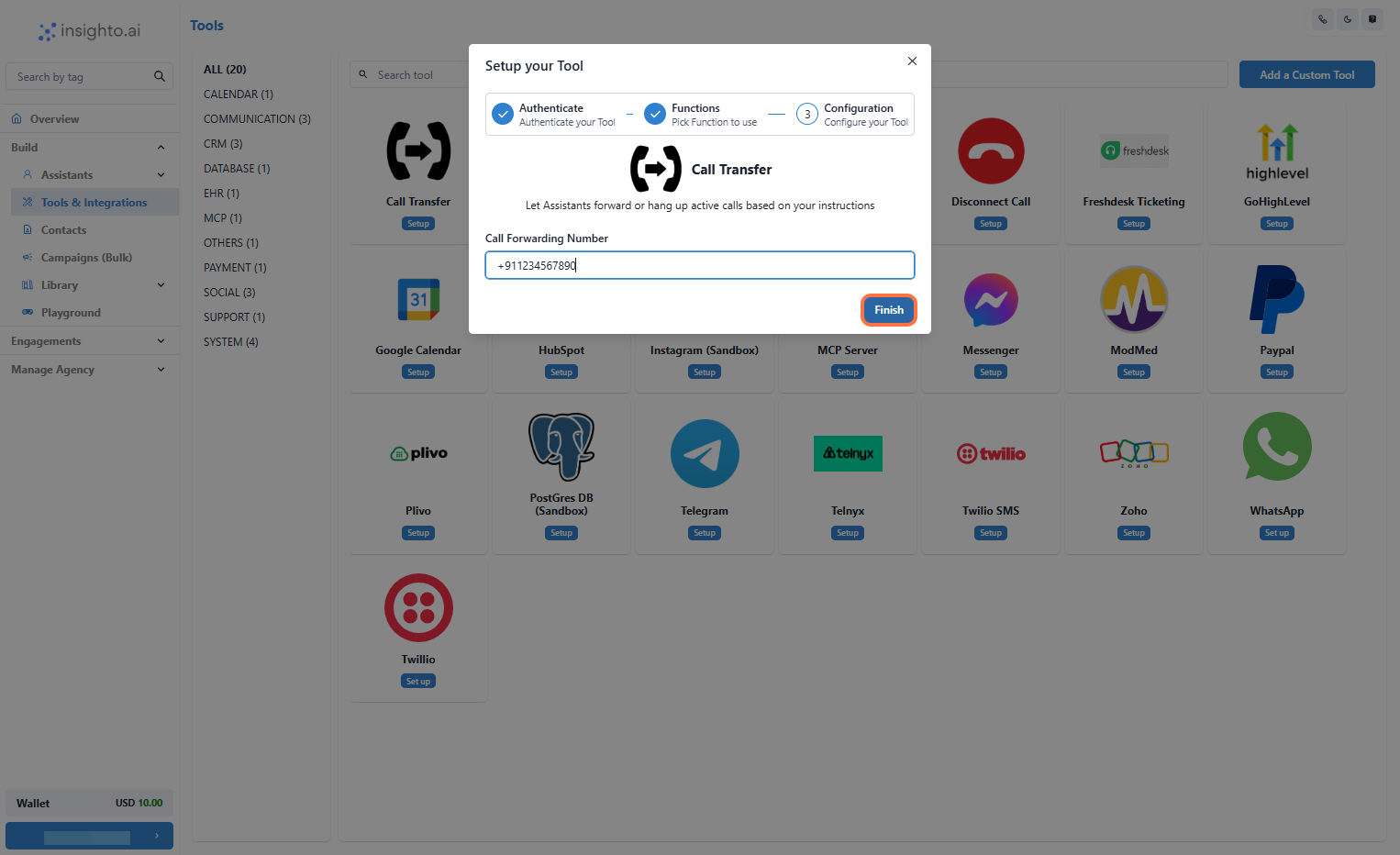
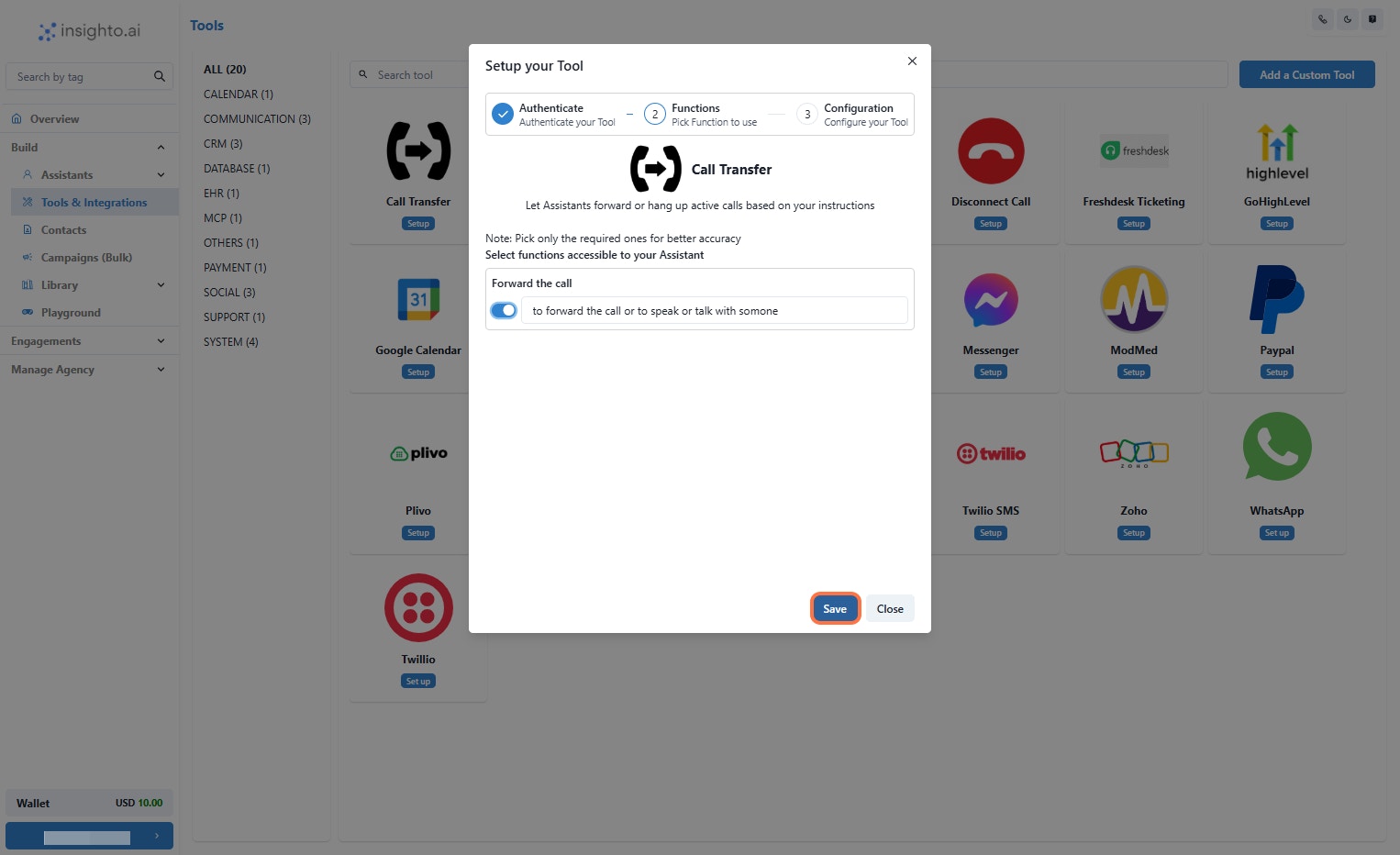 10. Enter the Number and Click on Finish
Enter the number where you want the call to be forwarded.
Click **Finish** to complete the setup.
10. Enter the Number and Click on Finish
Enter the number where you want the call to be forwarded.
Click **Finish** to complete the setup.
 11. Connect with Phone Assistant & Add Instructions to Trigger the Tool
Add logic to your assistant to determine when to use the call transfer tool.
**Instruction Example:**
> If the user requests to speak with (someone/Name), forward the call using the available tool.
11. Connect with Phone Assistant & Add Instructions to Trigger the Tool
Add logic to your assistant to determine when to use the call transfer tool.
**Instruction Example:**
> If the user requests to speak with (someone/Name), forward the call using the available tool.