> ## Documentation Index
> Fetch the complete documentation index at: https://docs.insighto.ai/llms.txt
> Use this file to discover all available pages before exploring further.
# GHL Missed Call Widget
The GHL Missed Call Widget allows your AI assistant to automatically respond to missed calls by initiating a callback. This ensures you stay connected with leads and customers even when you're unavailable.
> ⚠️ **Note**: This feature works **only with Twilio** as the call provider.
## Setup GHL Voice Widget
1. Prerequisites: Assistant & Tool Setup
Before you begin:
* ✅ A **Call Assistant** must be created
* ✅ **GHL Tool** should be set up and connected
* ✅ **Twilio Tool** must be configured for voice
***
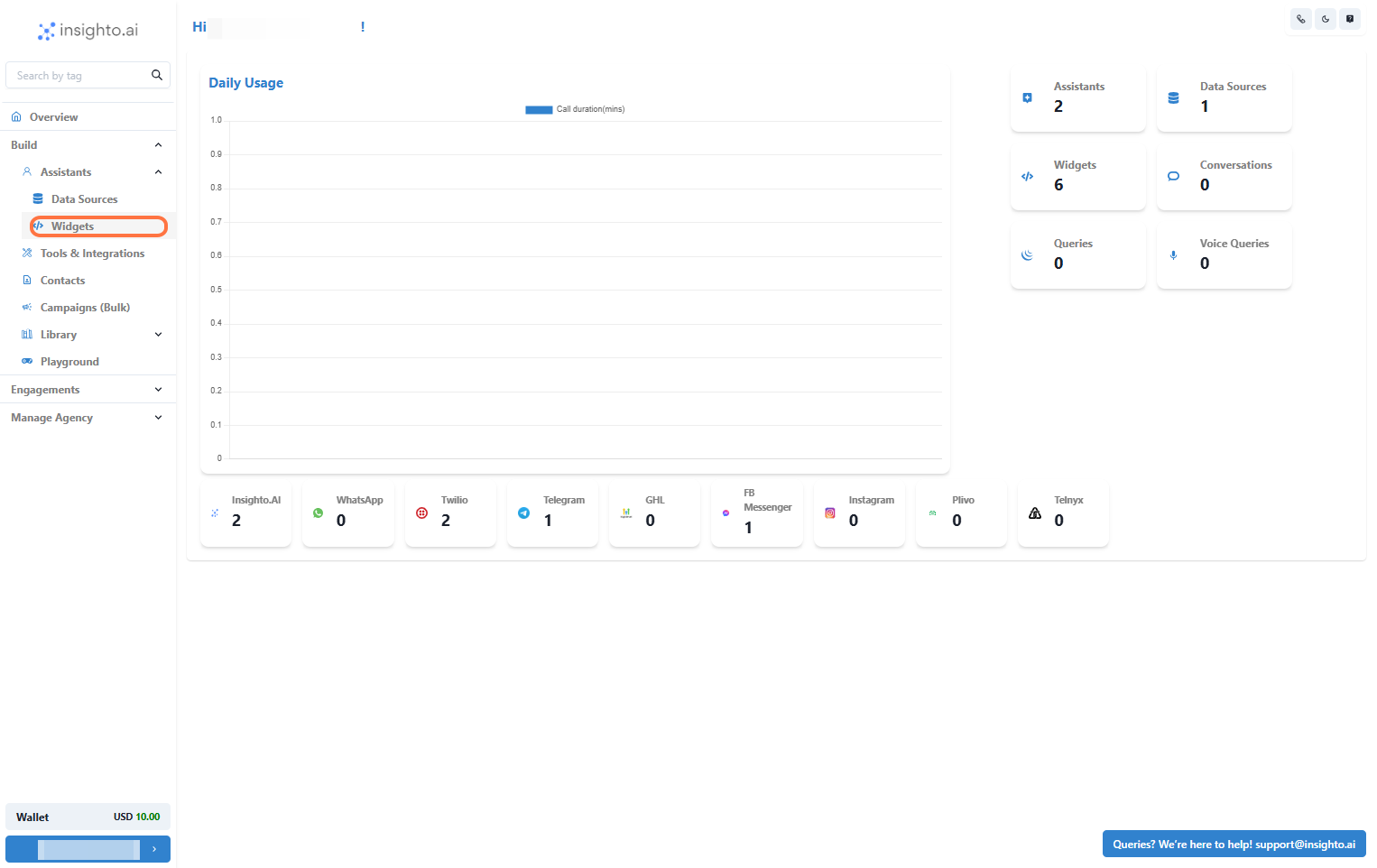
2. Click on Widgets from the Left Panel
From the Assistants section in the left panel, click **Widgets** to go to the widget setup screen.
 ***
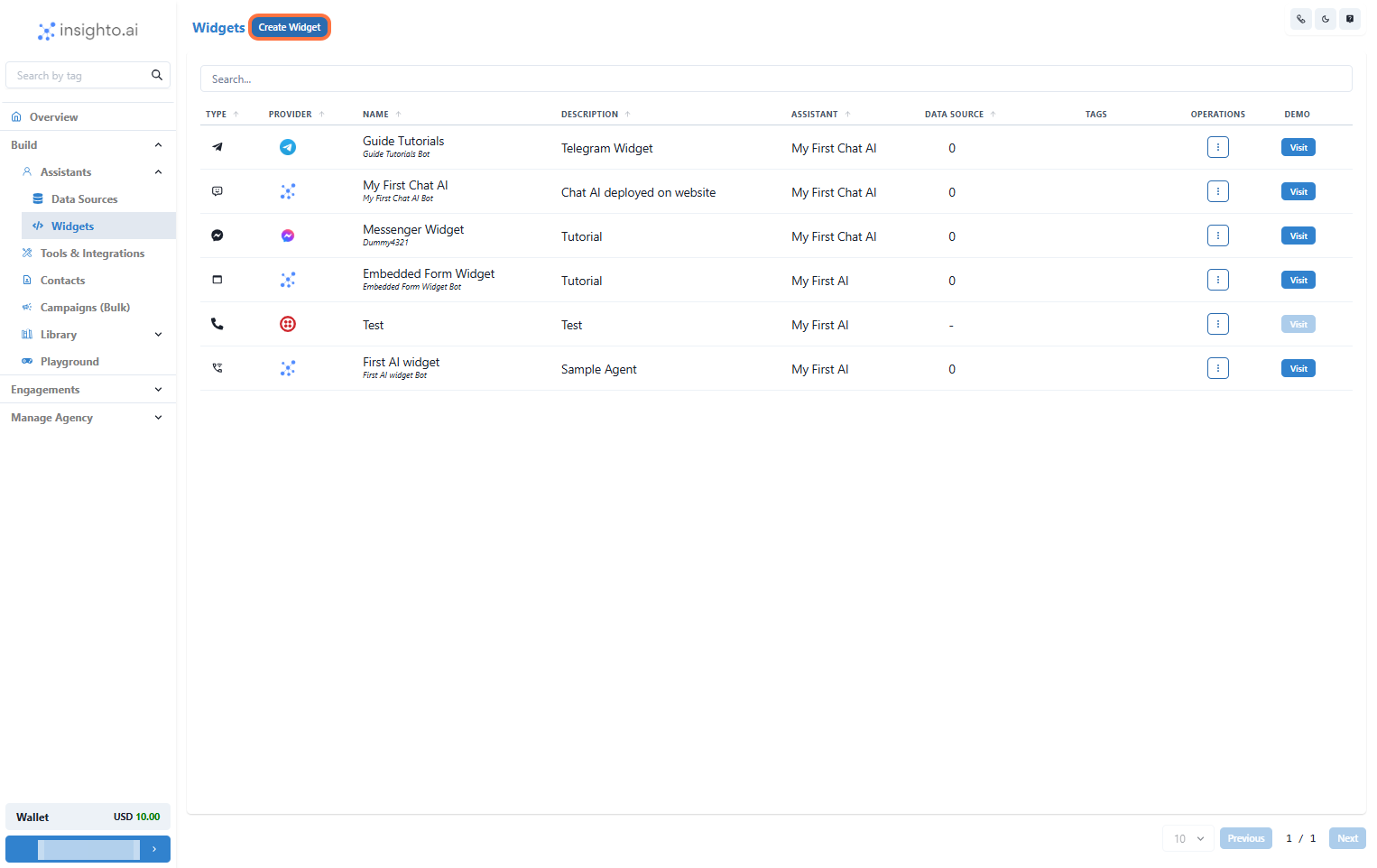
3. Create a New Widget
Click **Create New Widget** to begin the setup process.
***
3. Create a New Widget
Click **Create New Widget** to begin the setup process.
 ***
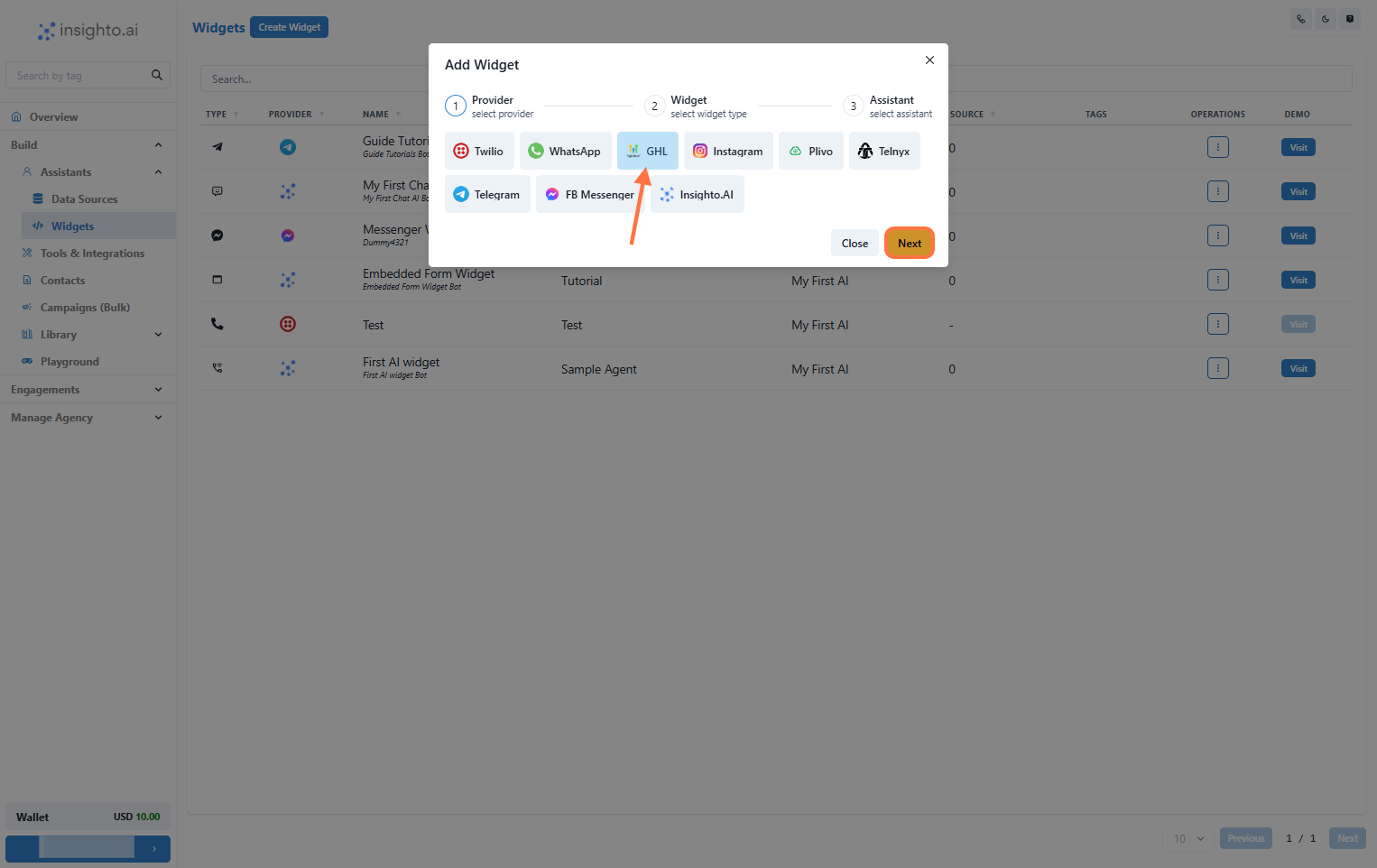
4. Select GHL as the Provider Type and Click Next
On the widget setup screen:
* Select **GHL** as the provider type
* Click **Next**
***
4. Select GHL as the Provider Type and Click Next
On the widget setup screen:
* Select **GHL** as the provider type
* Click **Next**
 ***
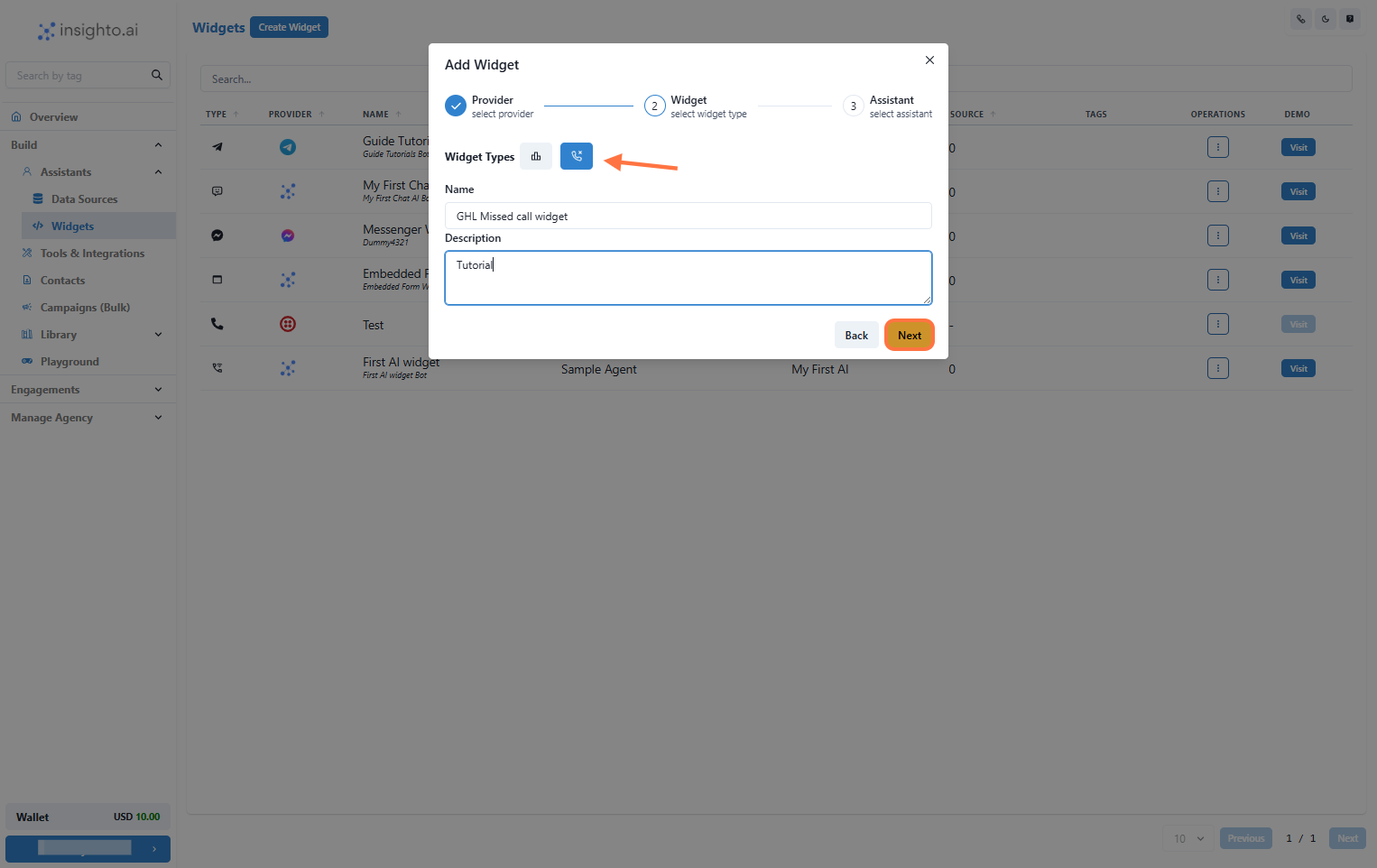
5. Select Widget Type, Name, and Describe Your Widget
* **Widget Type**: Choose the **Chat** type
* **Name**: Enter a descriptive name
* **Description**: Add a brief purpose
Then click **Next**.
***
5. Select Widget Type, Name, and Describe Your Widget
* **Widget Type**: Choose the **Chat** type
* **Name**: Enter a descriptive name
* **Description**: Add a brief purpose
Then click **Next**.
 ***
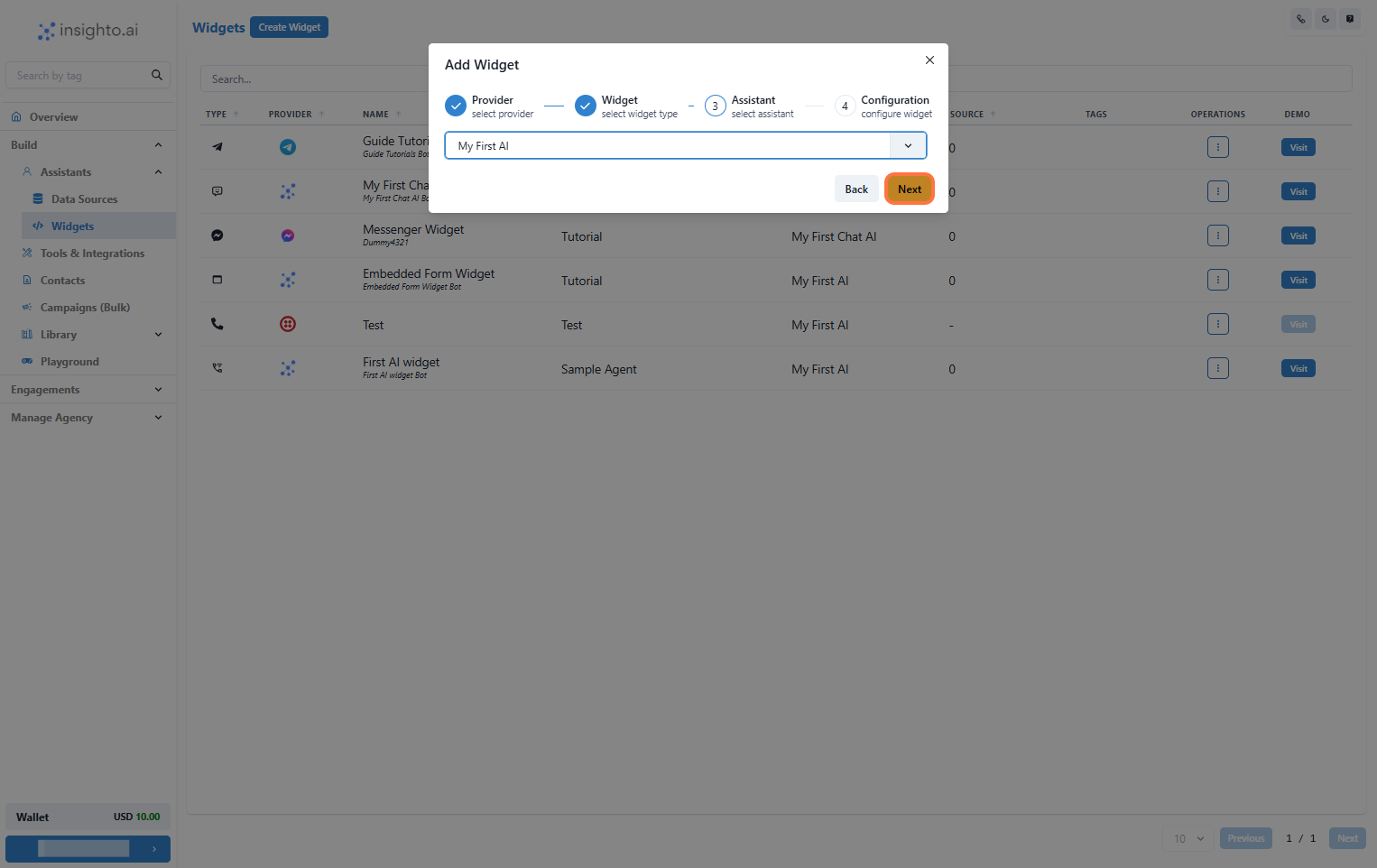
6. Select Your Phone Assistant from the Dropdown
Choose the AI phone assistant you created earlier from the dropdown list.
***
6. Select Your Phone Assistant from the Dropdown
Choose the AI phone assistant you created earlier from the dropdown list.
 ***
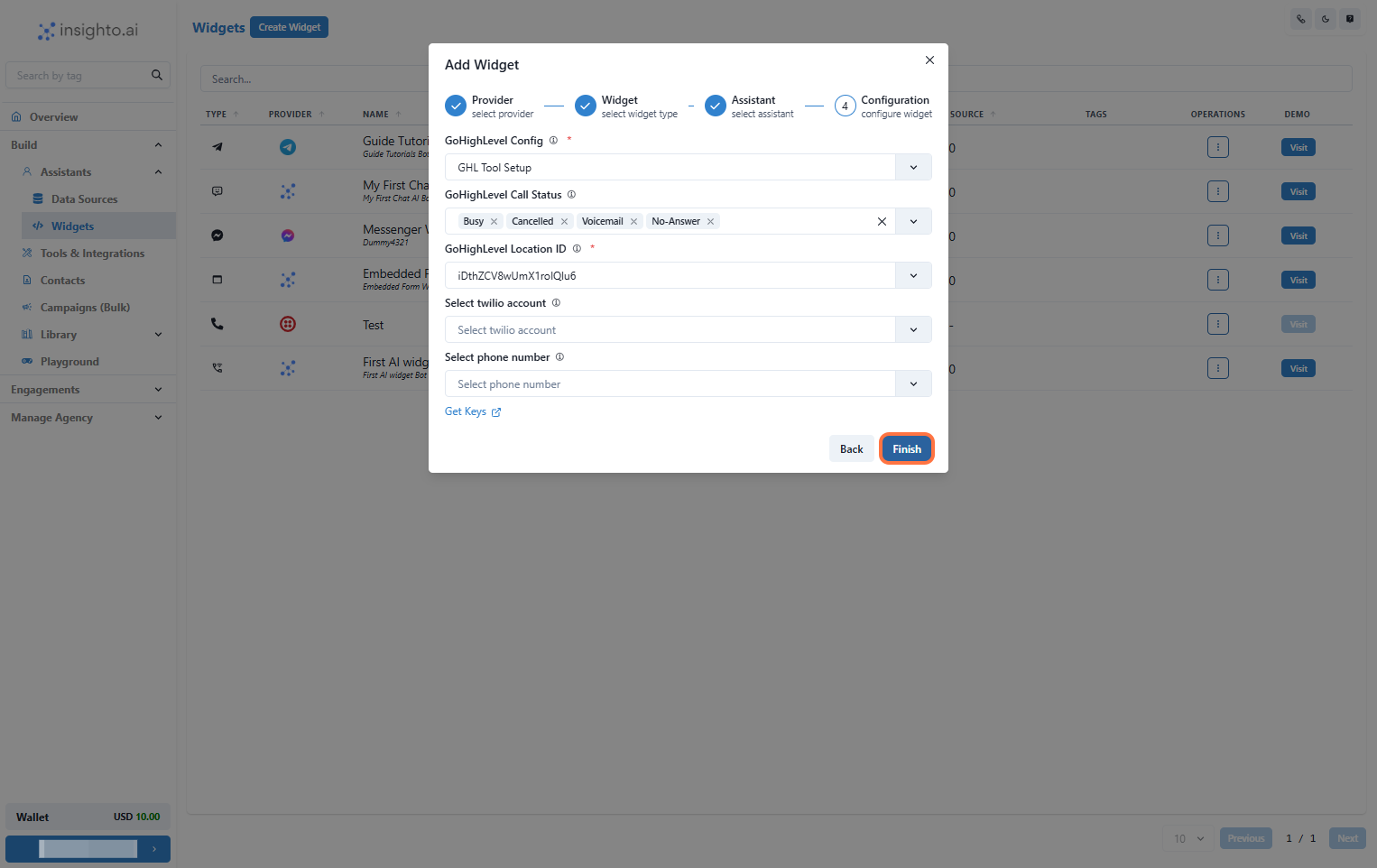
7. Click on Configure GHL Chat Widget
In this configuration step:
1. Select your **GHL Configuration**
2. Choose the **Call Status** to trigger the call
3. Select the appropriate **Location ID**
4. Choose the **Twilio account** and **Phone Number**
Click **Finish** to deploy the widget.
***
7. Click on Configure GHL Chat Widget
In this configuration step:
1. Select your **GHL Configuration**
2. Choose the **Call Status** to trigger the call
3. Select the appropriate **Location ID**
4. Choose the **Twilio account** and **Phone Number**
Click **Finish** to deploy the widget.
 ***
8. Test the Deployment
After the widget is deployed:
* Simulate a missed call
* Ensure the AI assistant triggers a callback via Twilio
* Confirm correct integration with your GHL account
***
8. Test the Deployment
After the widget is deployed:
* Simulate a missed call
* Ensure the AI assistant triggers a callback via Twilio
* Confirm correct integration with your GHL account