> ## Documentation Index
> Fetch the complete documentation index at: https://docs.insighto.ai/llms.txt
> Use this file to discover all available pages before exploring further.
# Getting Started
Insighto.ai Agency Plan Setup Guide
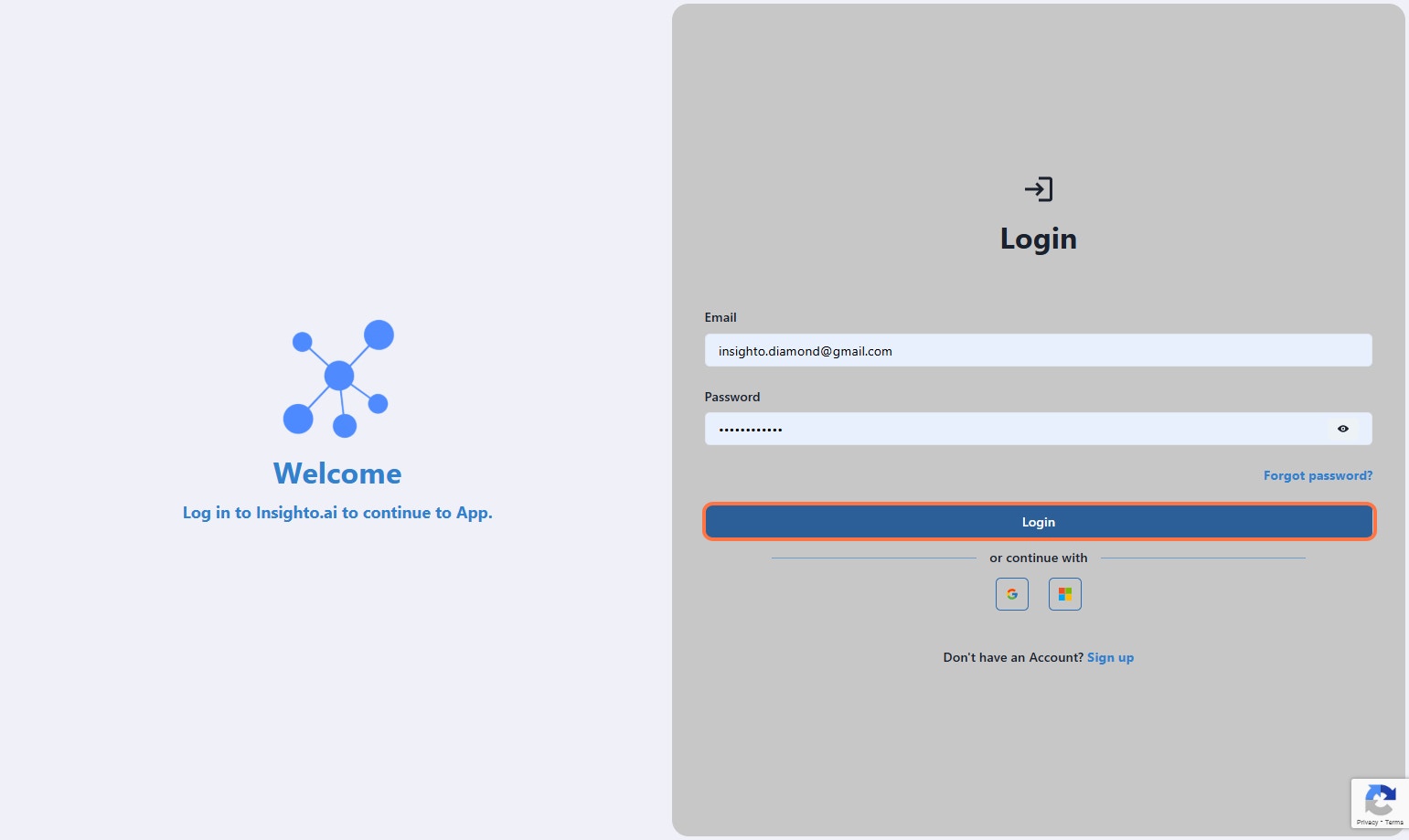
1. Login to Insighto.ai account here: [https://app.insighto.ai/login](https://app.insighto.ai/login)
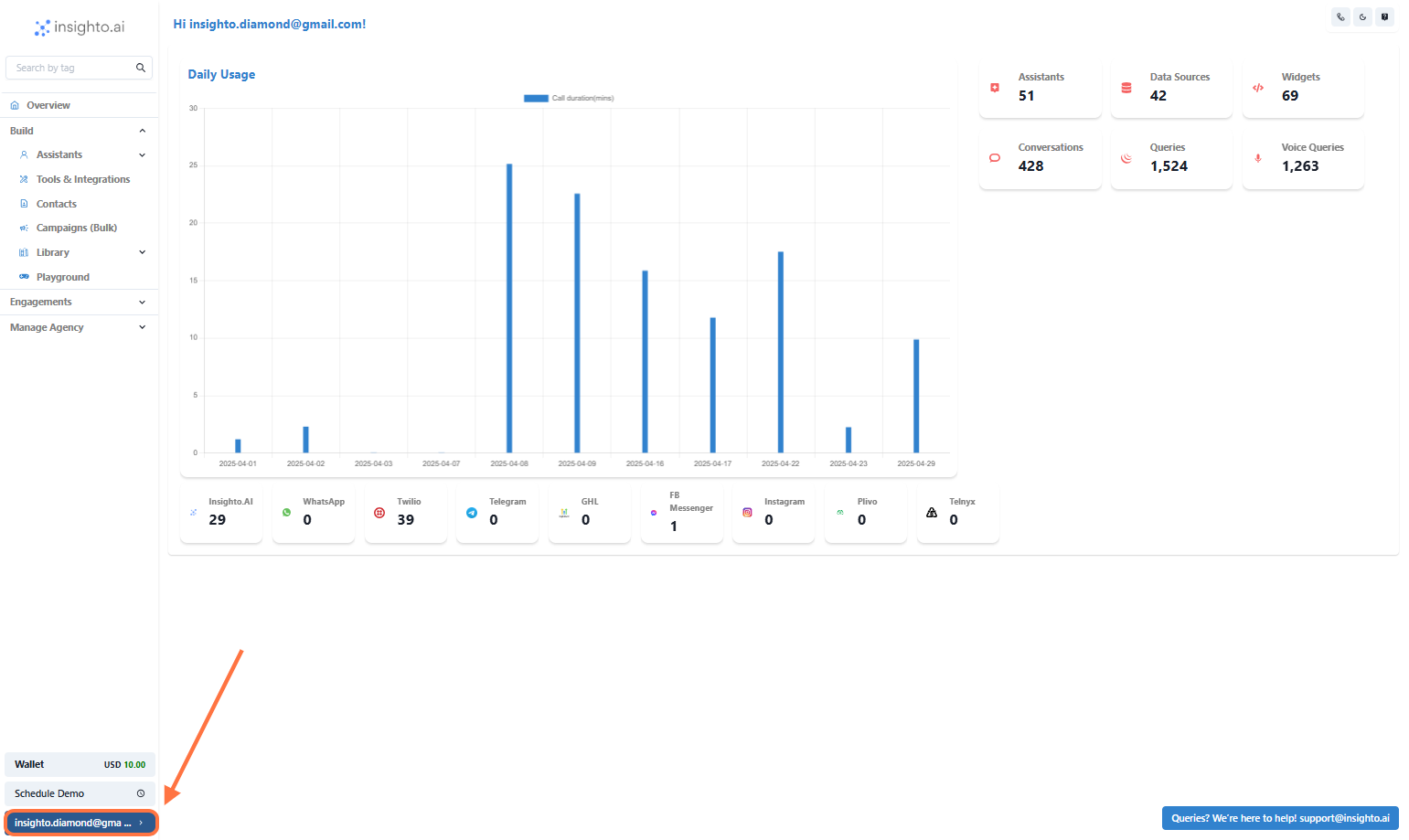
 2. Click on Settings
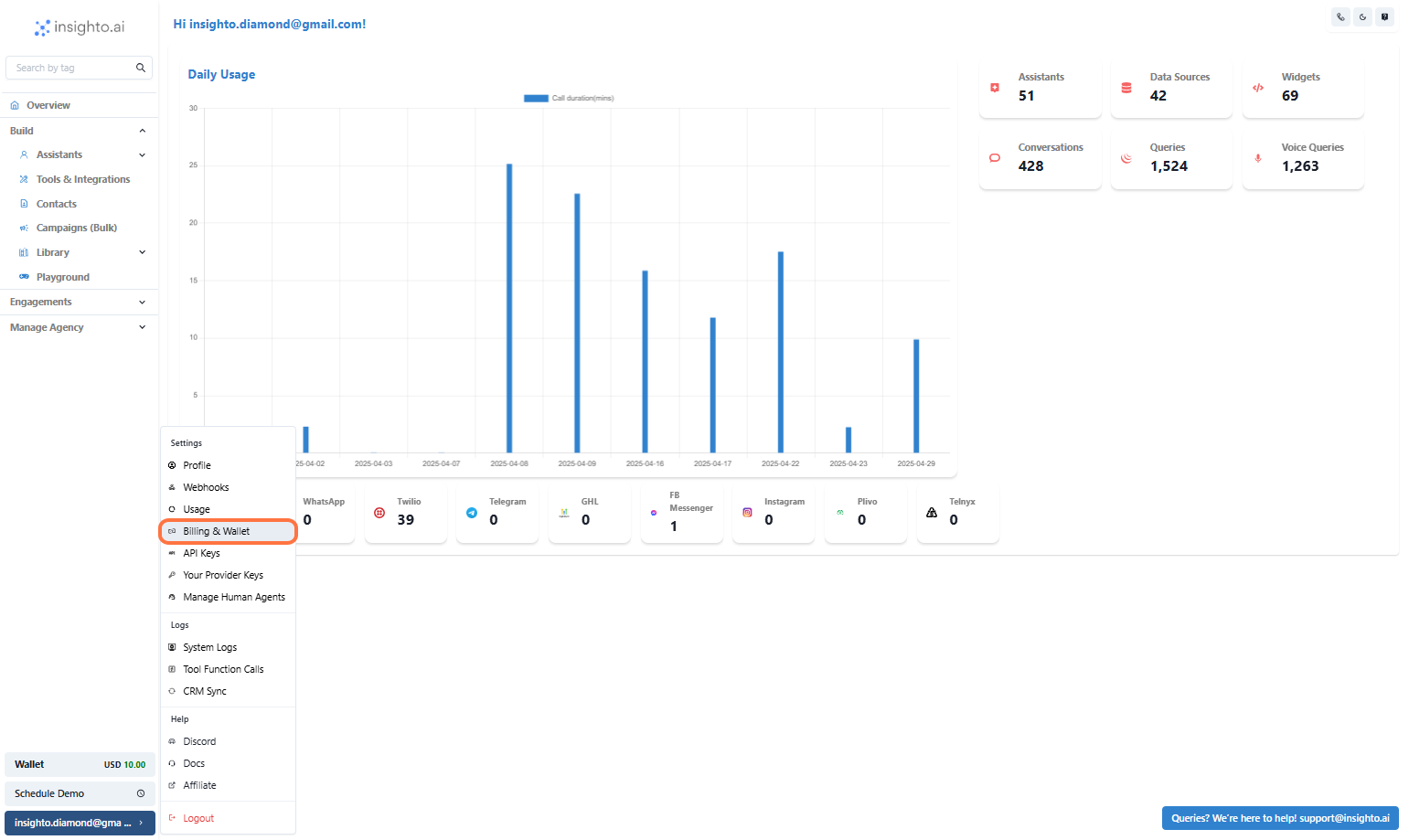
 3. Click on Billing & Wallet
 4. Click on "For Agencies"
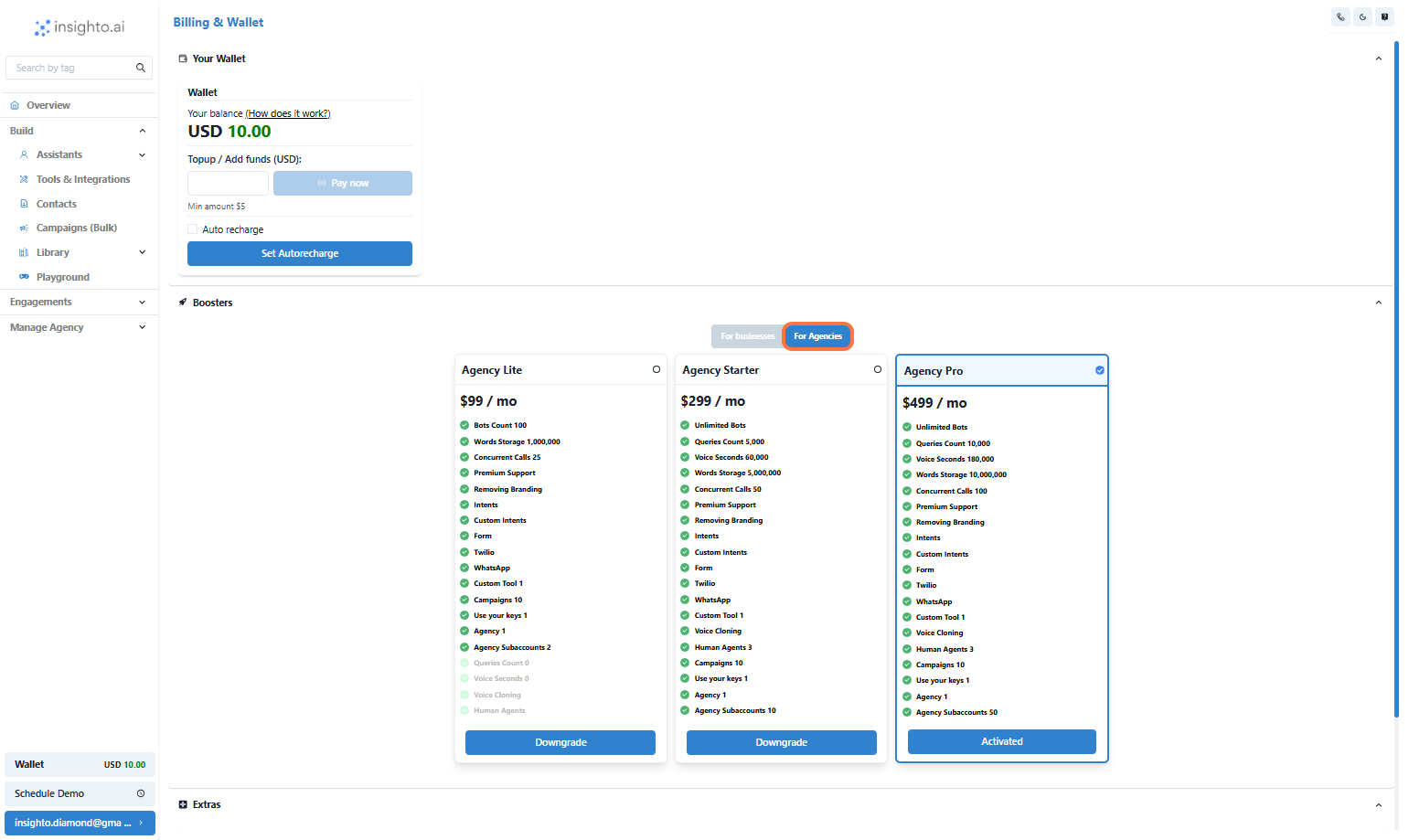 5. Select the plan of your choice\
Click on Upgrade, it will redirect you to the billing portal -> Add Payment method and complete the purchase
5. Select the plan of your choice\
Click on Upgrade, it will redirect you to the billing portal -> Add Payment method and complete the purchase
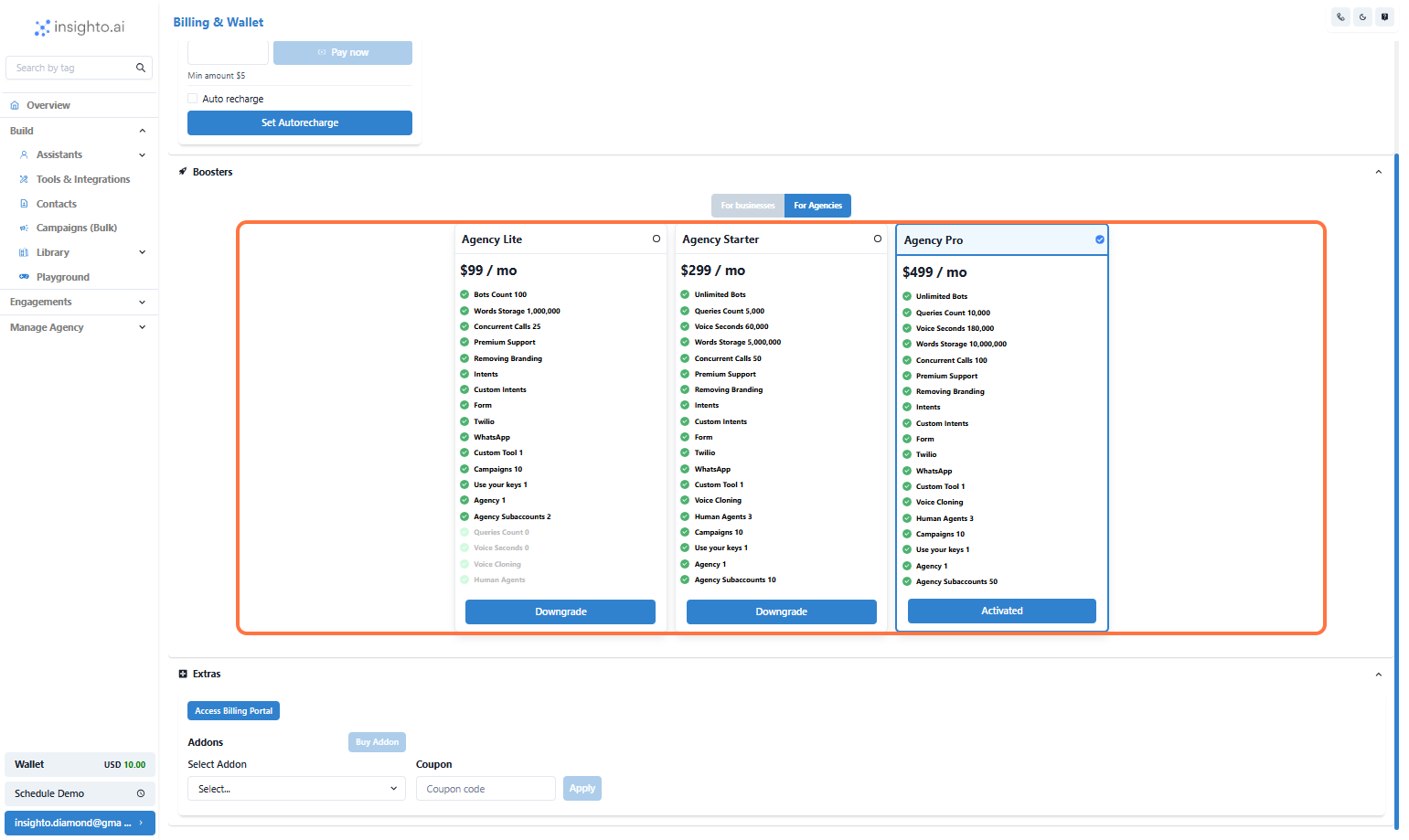 6. After the Purchase is complete, Click on Manage Agency
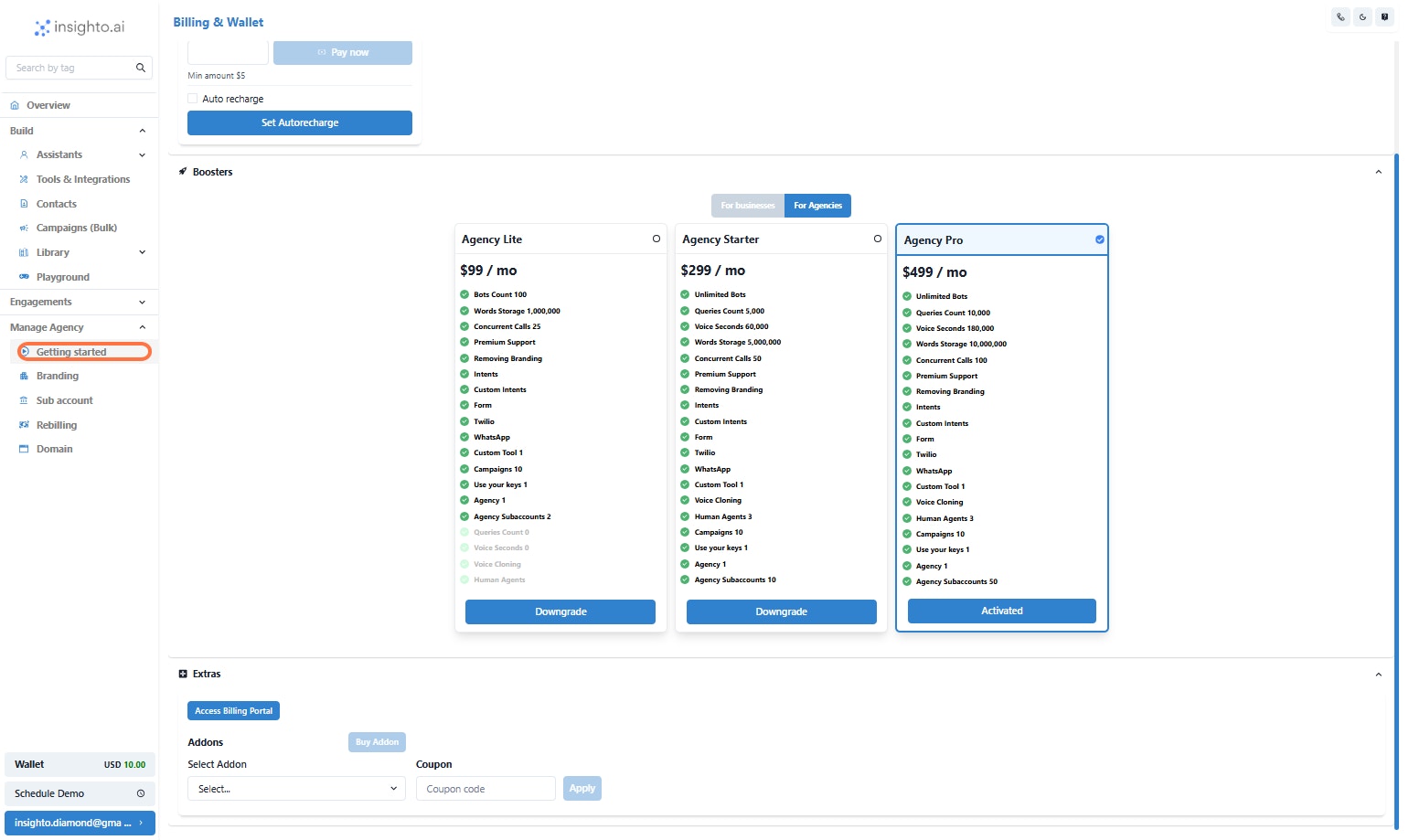
 7. Click on Getting started
 8. Getting Started – Agency Setup Overview
The Getting Started page in your Insighto.ai dashboard guides you through the essential steps to fully configure your agency workspace. This page is dynamic and updates in real-time as you complete each component of the setup process.
🔧 There are 4 key components to complete your agency setup:\
**Branding**\
Customize your agency's identity by adding logos, social profiles, and brand colors.
**Domain**\
Configure your agency domain and custom subdomains for proper white-label deployment.
**Billing**\
Create a billing plan or set up wallet-based billing for your subaccounts.
**Wallet / BYOK (Bring Your Own Key)**\
Add funds to your wallet or provide your own provider API keys to enable services for your subaccounts.
✅ **Real-Time Setup Progress**\
Each section on this page reflects the current setup status with color-coded indicators:
🟢 Green – Completed\
🟡 Yellow – Works but may need improvements\
🔴 Red – Requires attention to proceed
Once all necessary configurations are completed, the status at the bottom of the page will show:\
**"Setup is complete"**
This ensures your agency is fully functional and ready to onboard clients and subaccounts.
8. Getting Started – Agency Setup Overview
The Getting Started page in your Insighto.ai dashboard guides you through the essential steps to fully configure your agency workspace. This page is dynamic and updates in real-time as you complete each component of the setup process.
🔧 There are 4 key components to complete your agency setup:\
**Branding**\
Customize your agency's identity by adding logos, social profiles, and brand colors.
**Domain**\
Configure your agency domain and custom subdomains for proper white-label deployment.
**Billing**\
Create a billing plan or set up wallet-based billing for your subaccounts.
**Wallet / BYOK (Bring Your Own Key)**\
Add funds to your wallet or provide your own provider API keys to enable services for your subaccounts.
✅ **Real-Time Setup Progress**\
Each section on this page reflects the current setup status with color-coded indicators:
🟢 Green – Completed\
🟡 Yellow – Works but may need improvements\
🔴 Red – Requires attention to proceed
Once all necessary configurations are completed, the status at the bottom of the page will show:\
**"Setup is complete"**
This ensures your agency is fully functional and ready to onboard clients and subaccounts.
