> ## Documentation Index
> Fetch the complete documentation index at: https://docs.insighto.ai/llms.txt
> Use this file to discover all available pages before exploring further.
# MCP Server Tool
MCP (Model Context Protocol) is a system that allows AI agents to connect to and interact with
multiple tools simultaneously. It enables seamless orchestration between the AI model and
external systems like CRMs, databases, APIs, or automation platforms.
You can set up an MCP server using:
i. Platforms like Zapier, Make, or n8n (for no-code/low-code routing)
ii. A custom-built server that supports the MCP protocol
iii. Any integration hub that can expose APIs and receive model instructions
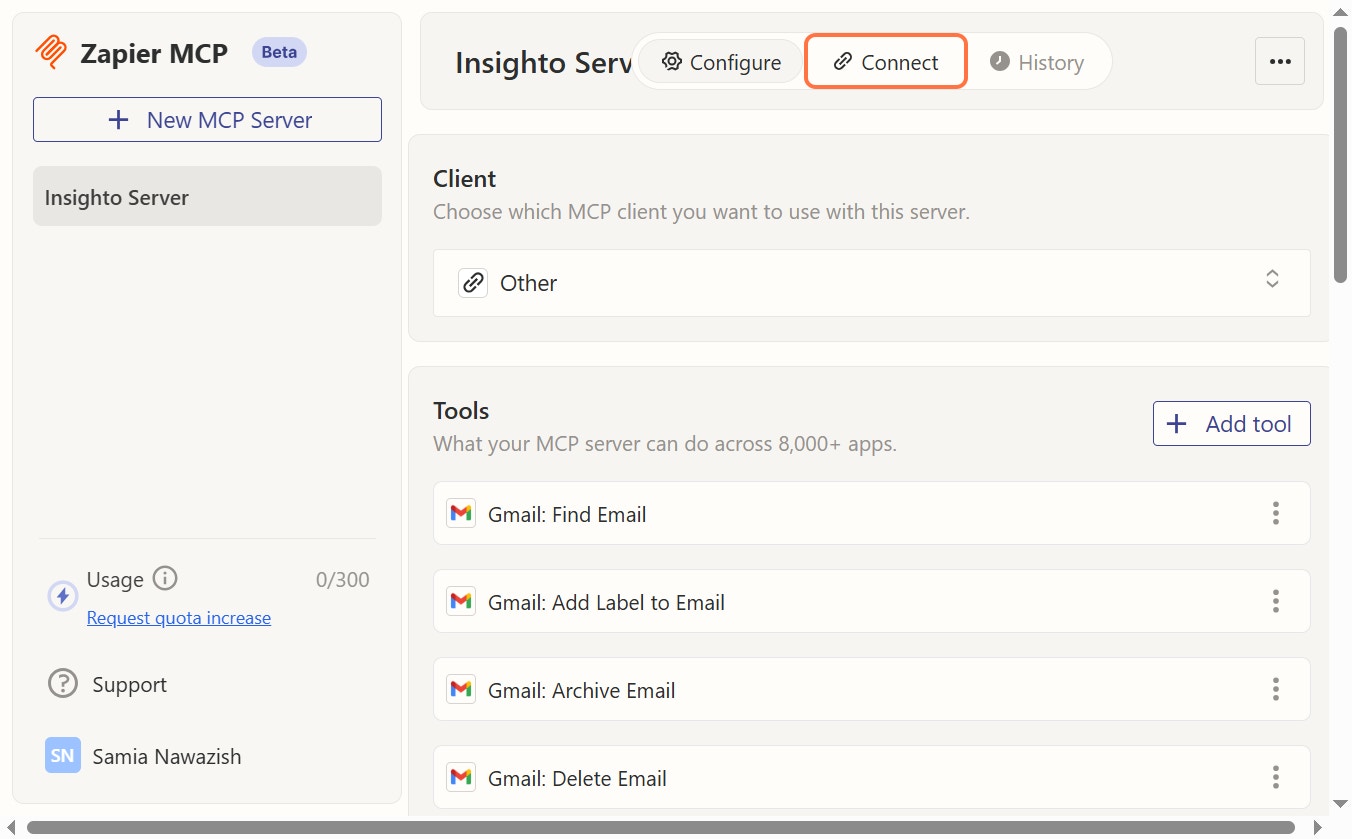
1. **Click on Connect**
Login to your MCP Server you have. We are using Zapier here.
Click on connect to get the MCP Server URL.
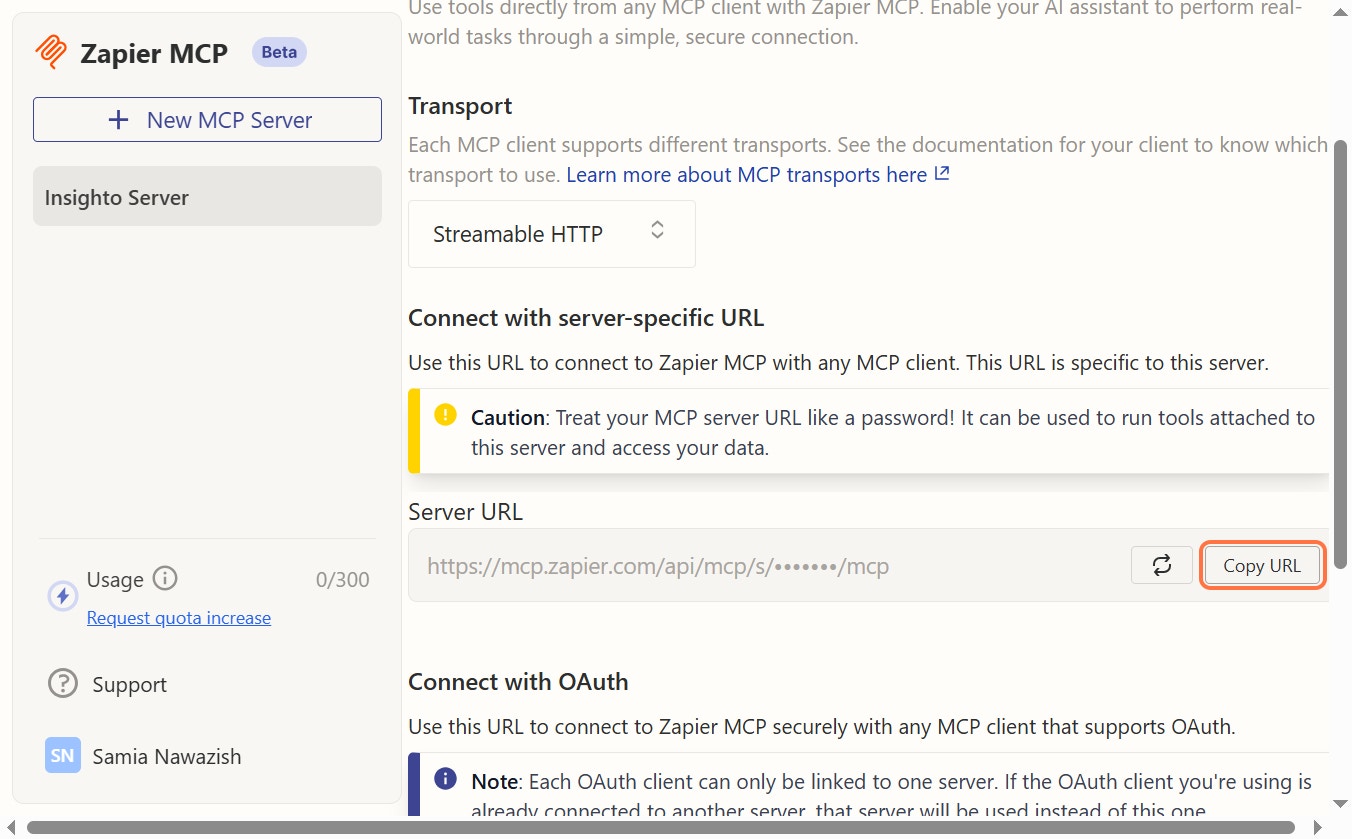
 2. **Click on Copy URL**
Copy the MCP Server Url.
2. **Click on Copy URL**
Copy the MCP Server Url.
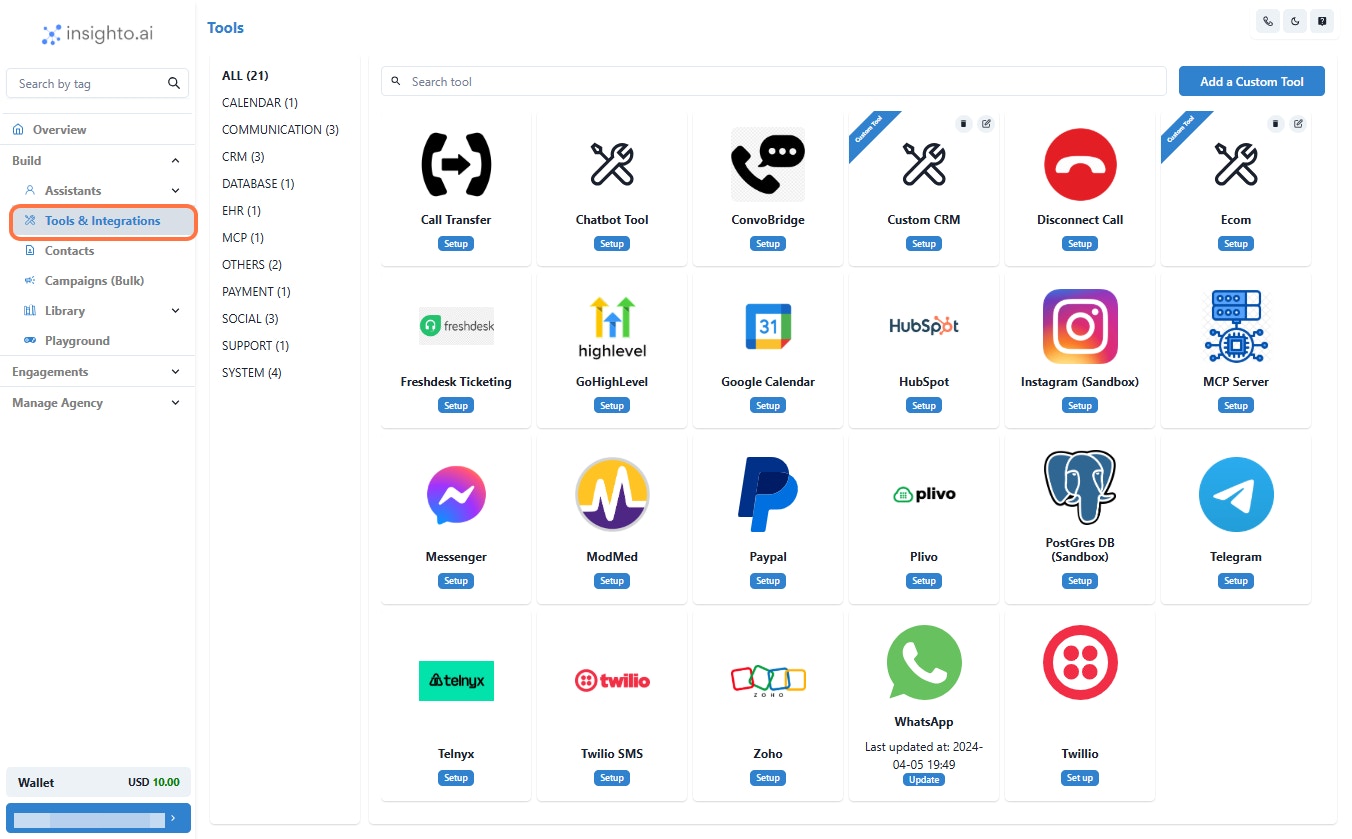
 3. **Click on Tools & Integrations**
Navigate to the Tools & Integrations section toset up MCP Server.
3. **Click on Tools & Integrations**
Navigate to the Tools & Integrations section toset up MCP Server.
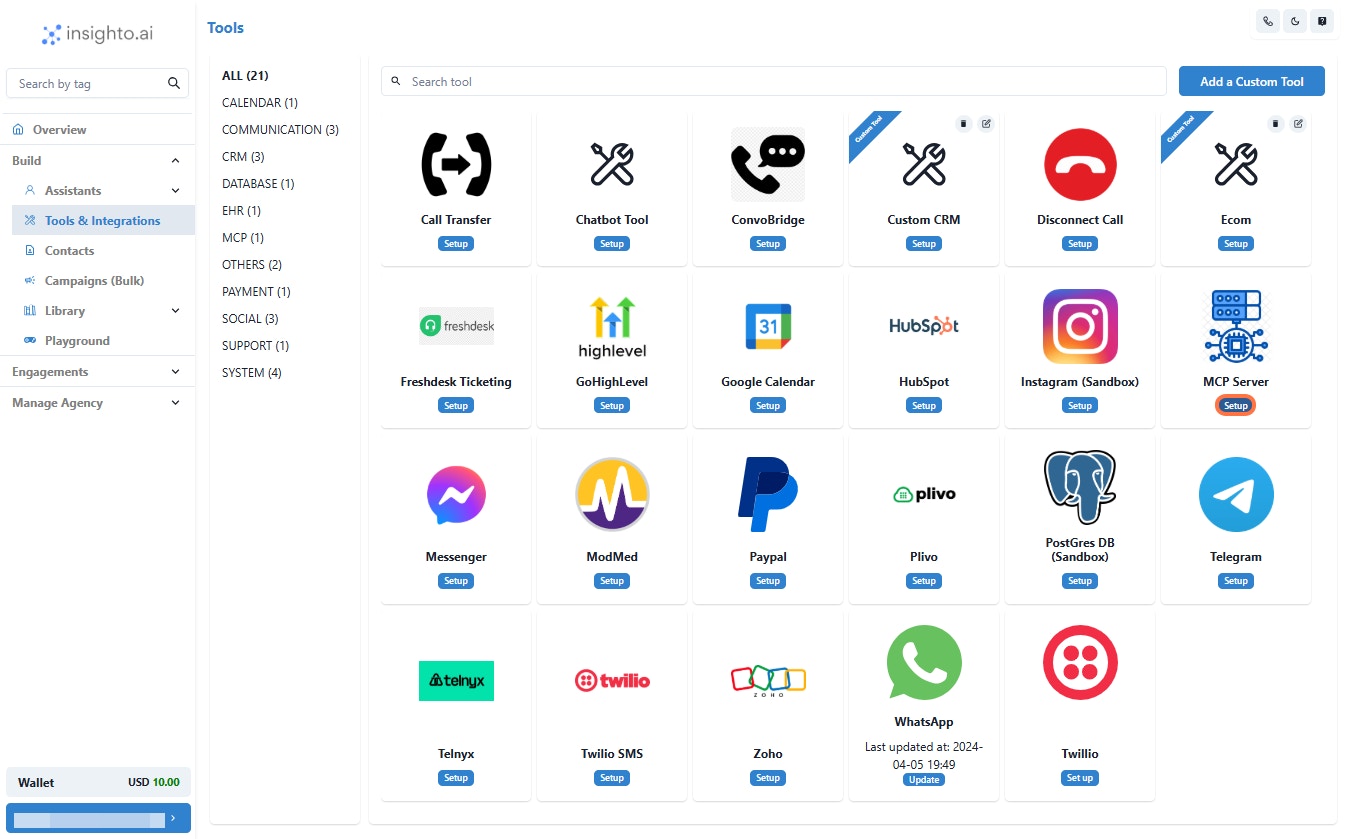
 4. **Click on Setup**
Click on the Setup button to configure the settings of MCP Server
4. **Click on Setup**
Click on the Setup button to configure the settings of MCP Server
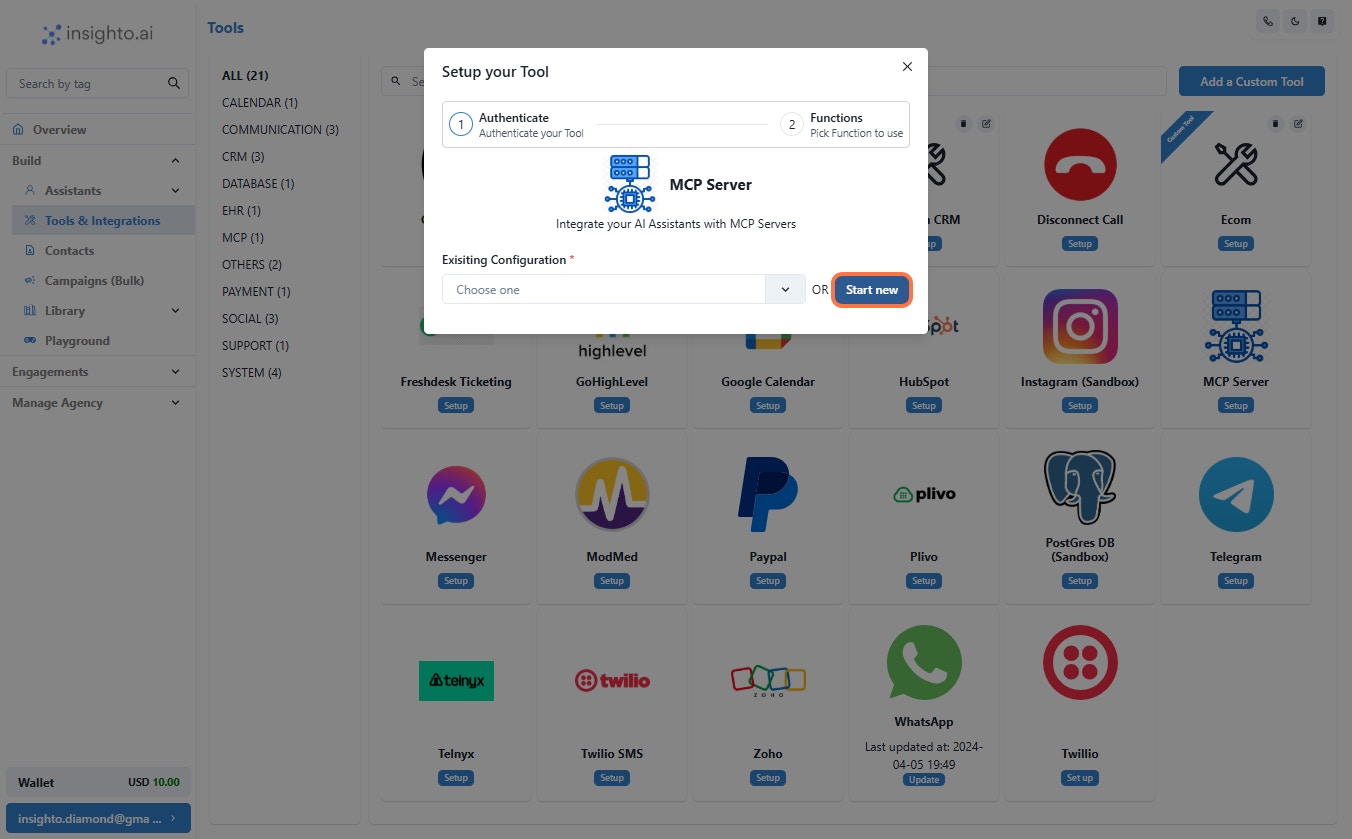
 5. **Click on Start new**
Click on Start New to begin a fresh setup.
5. **Click on Start new**
Click on Start New to begin a fresh setup.
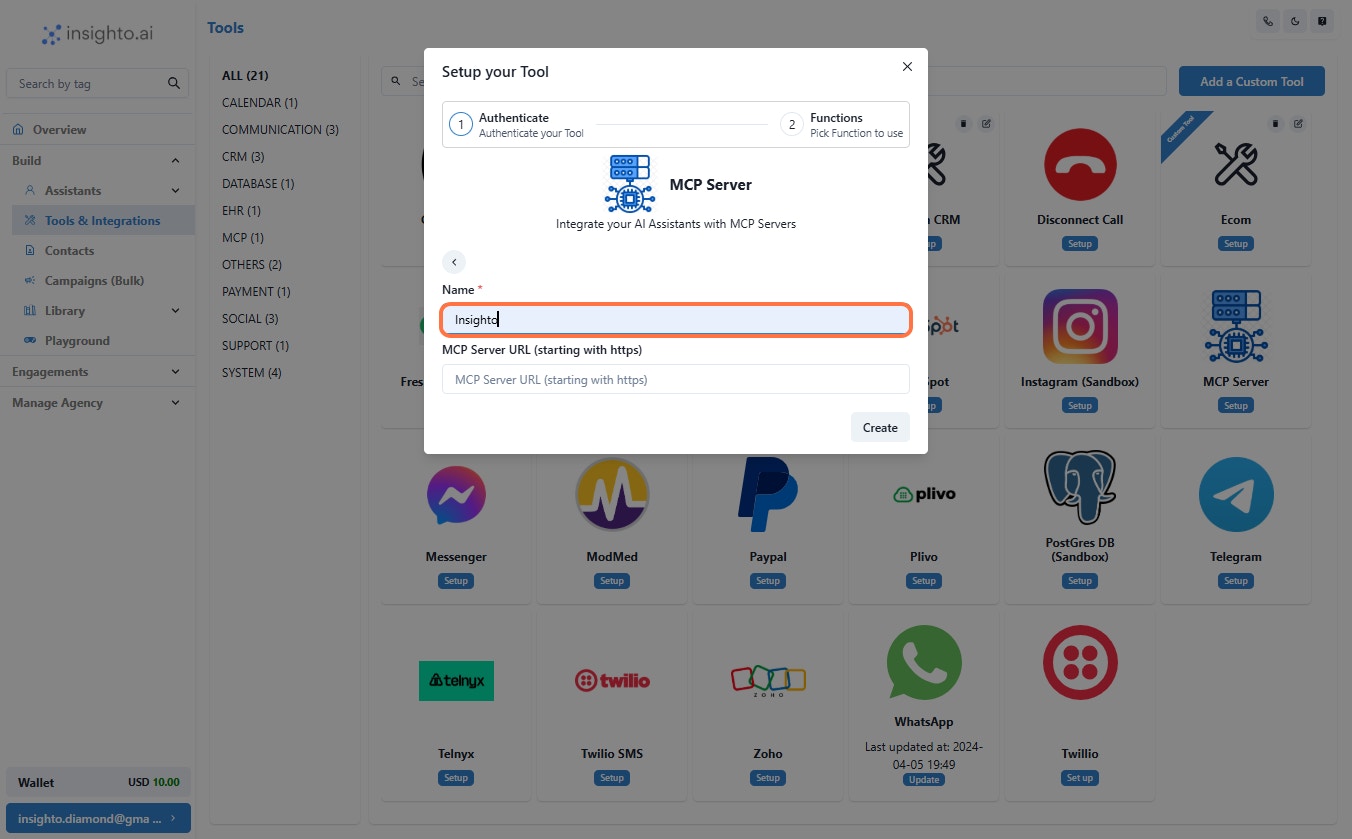
 6. **Give Name**
Enter a name for your new setup.
6. **Give Name**
Enter a name for your new setup.
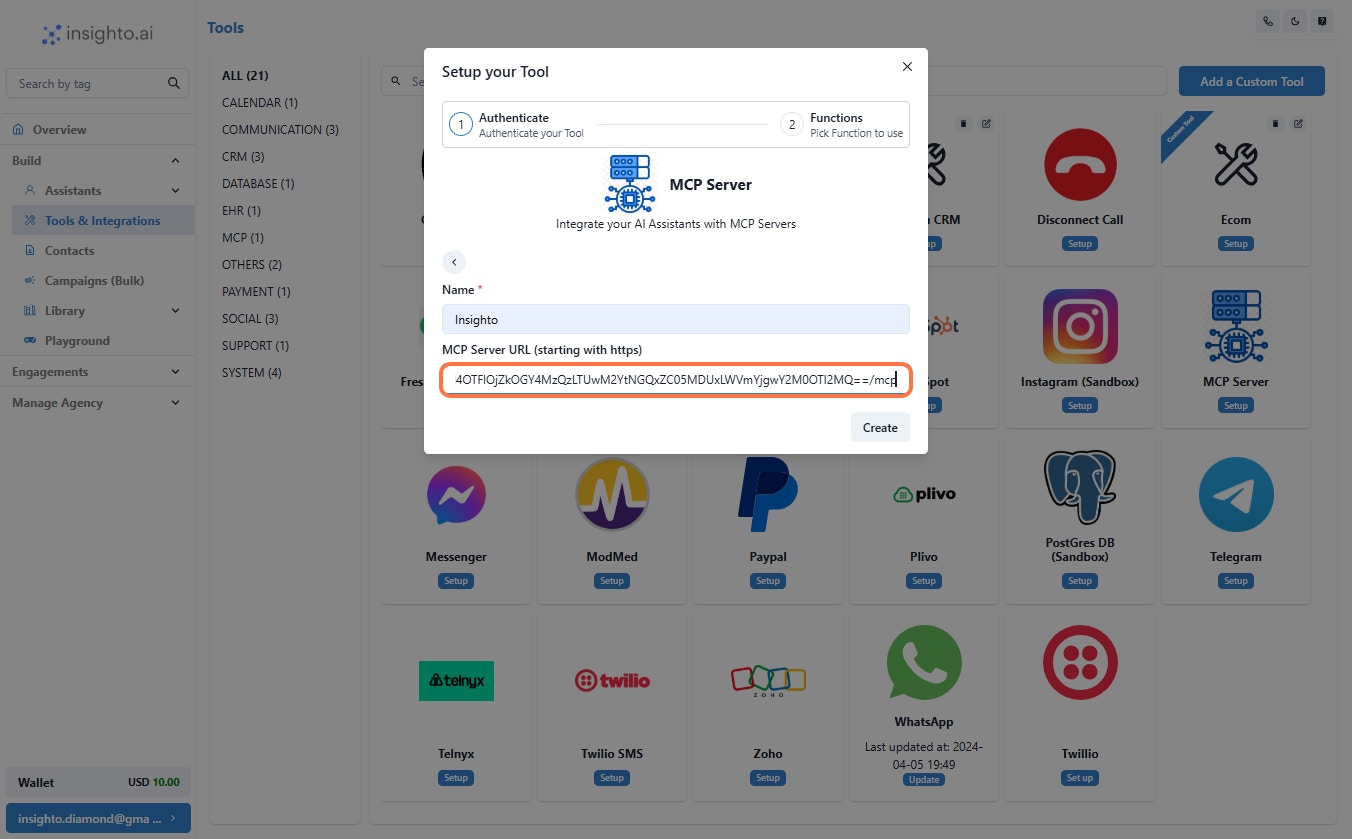
 7. **Enter MCP Server URL**
Provide the URL of your MCP (Model Context Protocol) server to enable your AI assistant to
communicate with external tools and services.
This URL should point to a valid MCP server (e.g., Zapier, Make, or a custom endpoint) that
supports tool orchestration and real-time interaction.
7. **Enter MCP Server URL**
Provide the URL of your MCP (Model Context Protocol) server to enable your AI assistant to
communicate with external tools and services.
This URL should point to a valid MCP server (e.g., Zapier, Make, or a custom endpoint) that
supports tool orchestration and real-time interaction.
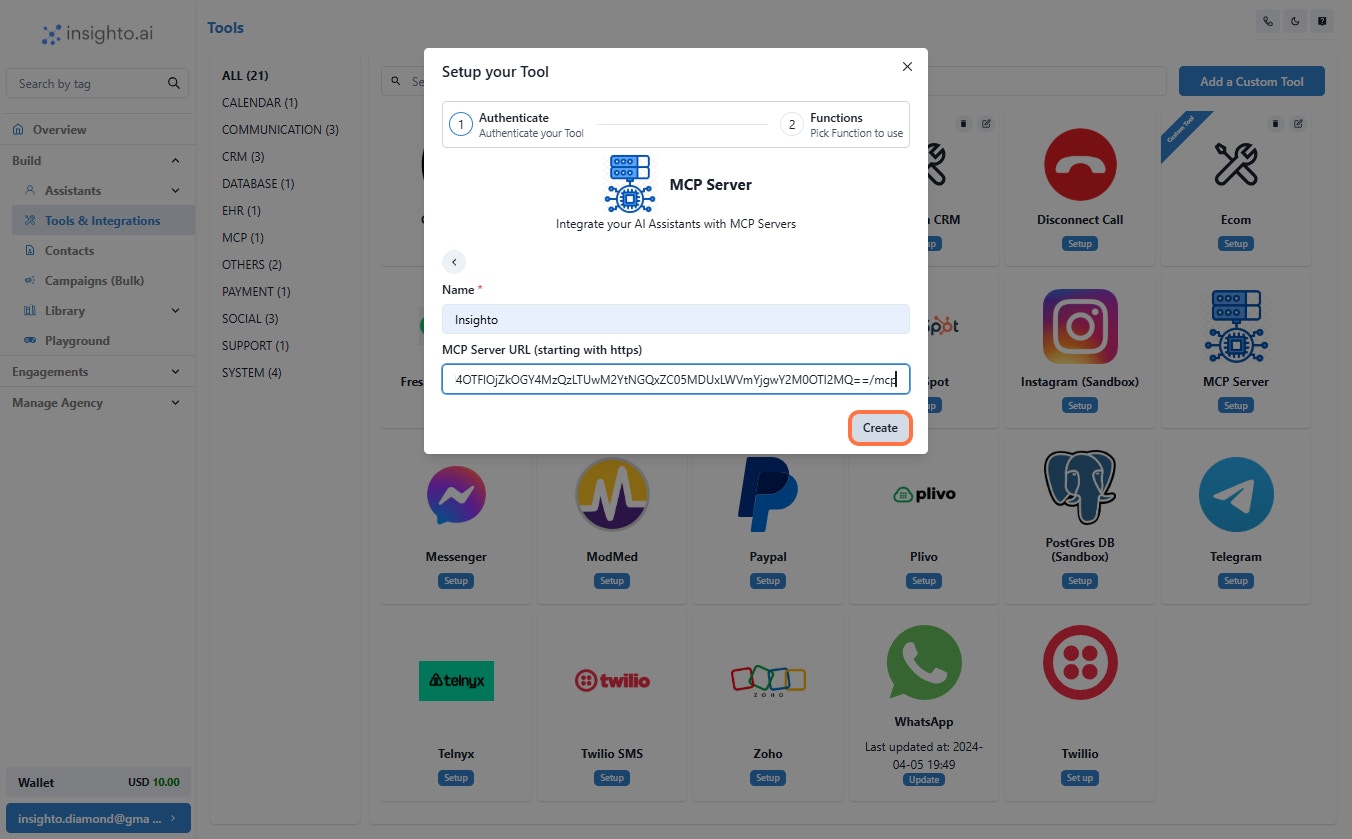
 8. **Click on Create**
Click on Create to finalize the setup and save your configuration.
8. **Click on Create**
Click on Create to finalize the setup and save your configuration.
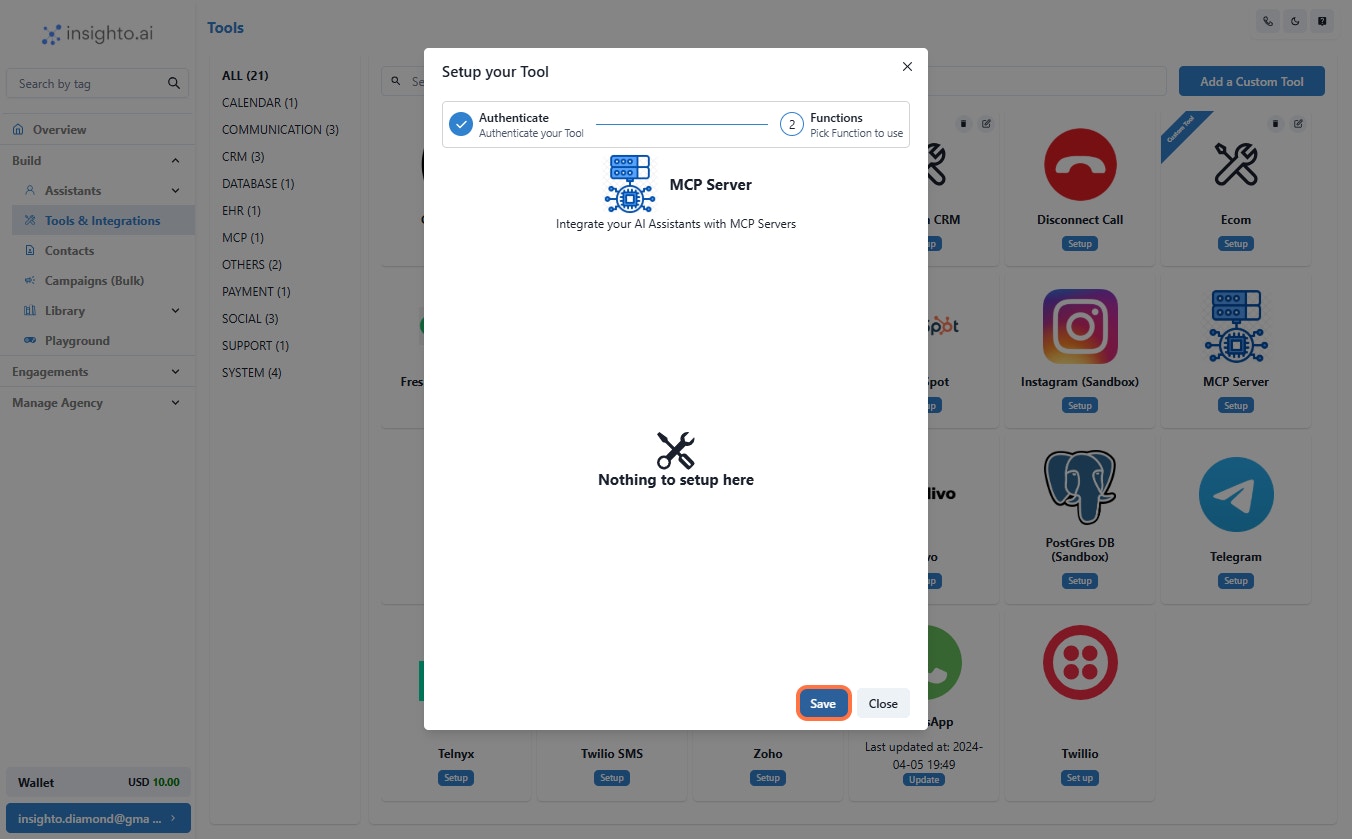
 9. **Click on Save**
Click on Save to store your changes and update the configuration.
9. **Click on Save**
Click on Save to store your changes and update the configuration.
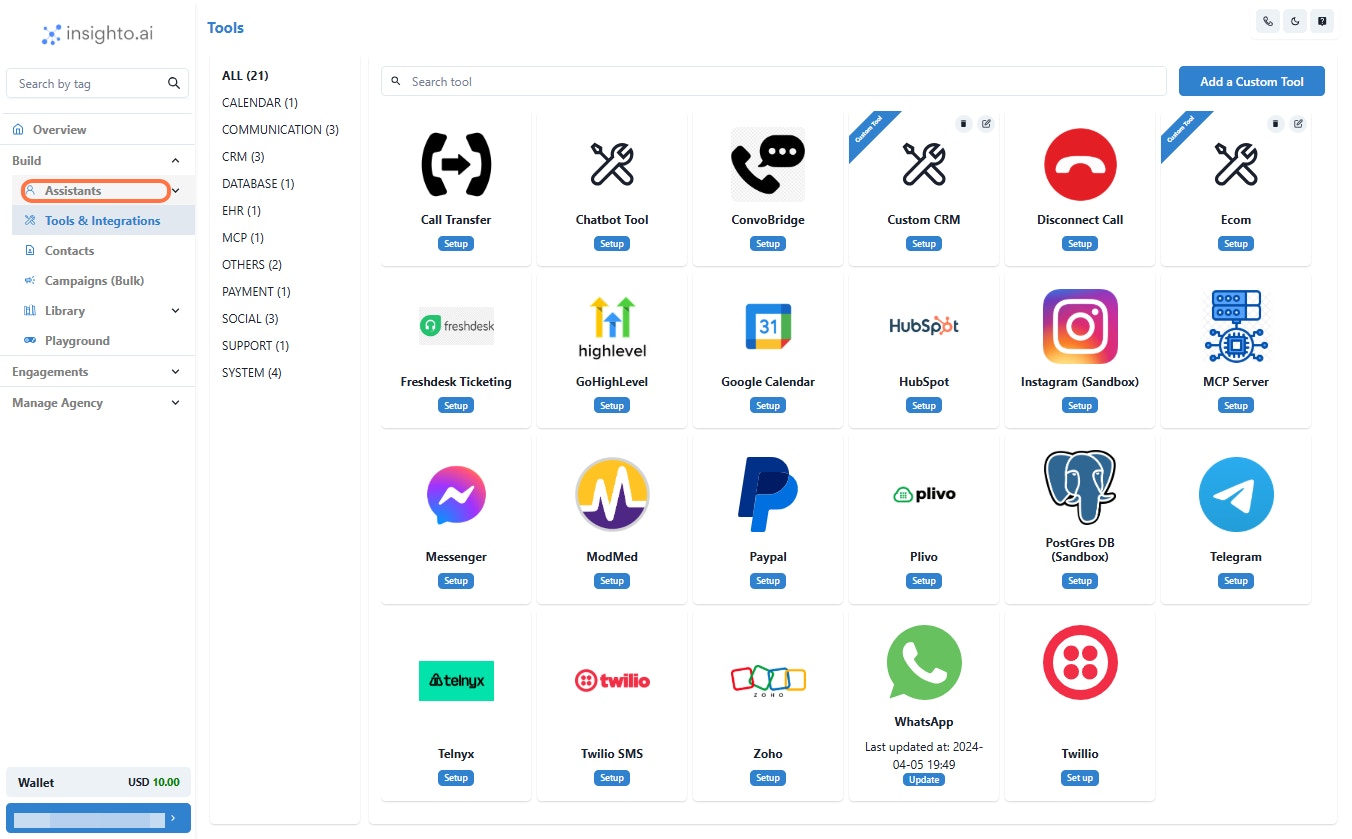
 10. **Click on Assistants**
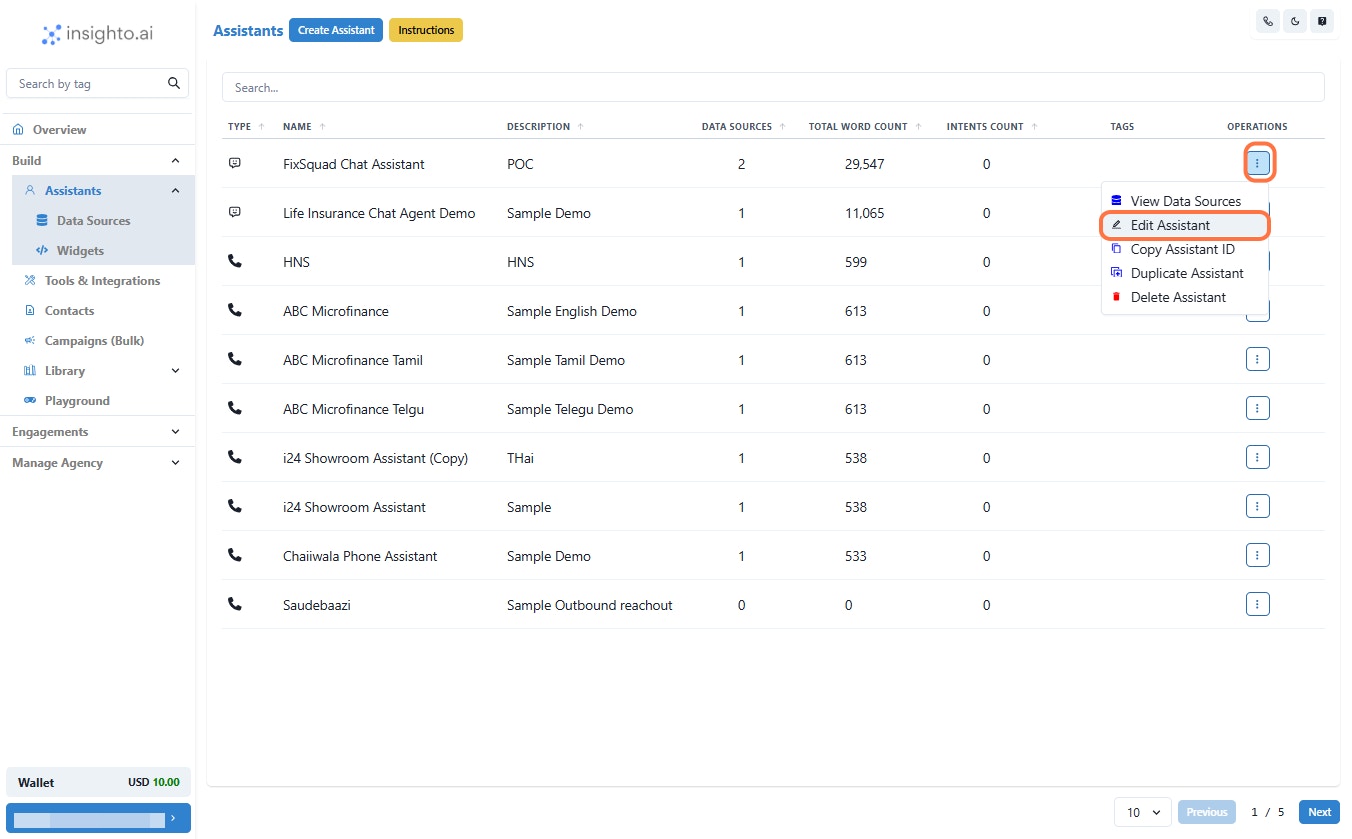
 11. **Click on Edit Assistant**
Click on Edit Assistant to modify the settings, tools, or behavior of an existing AI assistant.
11. **Click on Edit Assistant**
Click on Edit Assistant to modify the settings, tools, or behavior of an existing AI assistant.
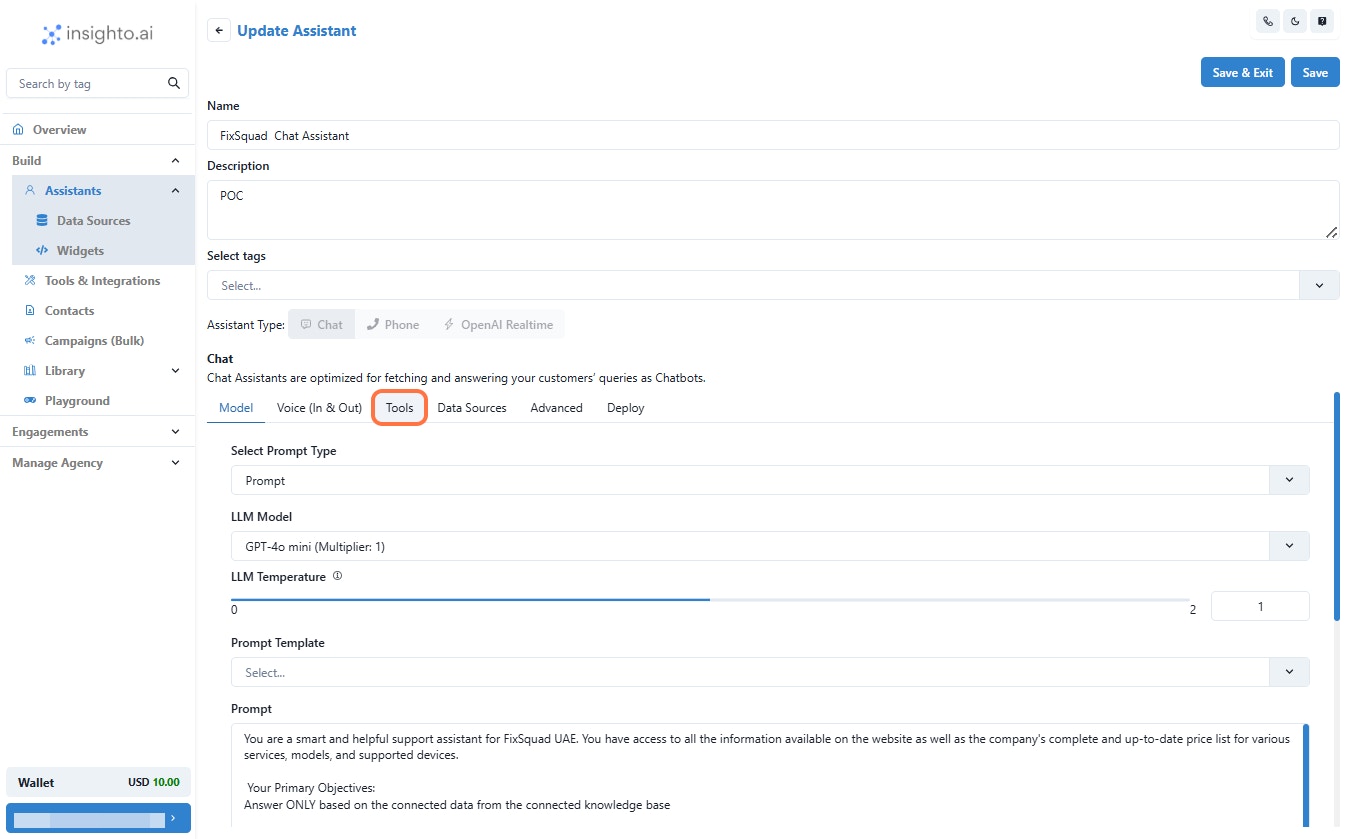
 12. **Click on Tools**
Click on Tools to access the list of available tools and integrations you can connect to your AI
assistant.
12. **Click on Tools**
Click on Tools to access the list of available tools and integrations you can connect to your AI
assistant.
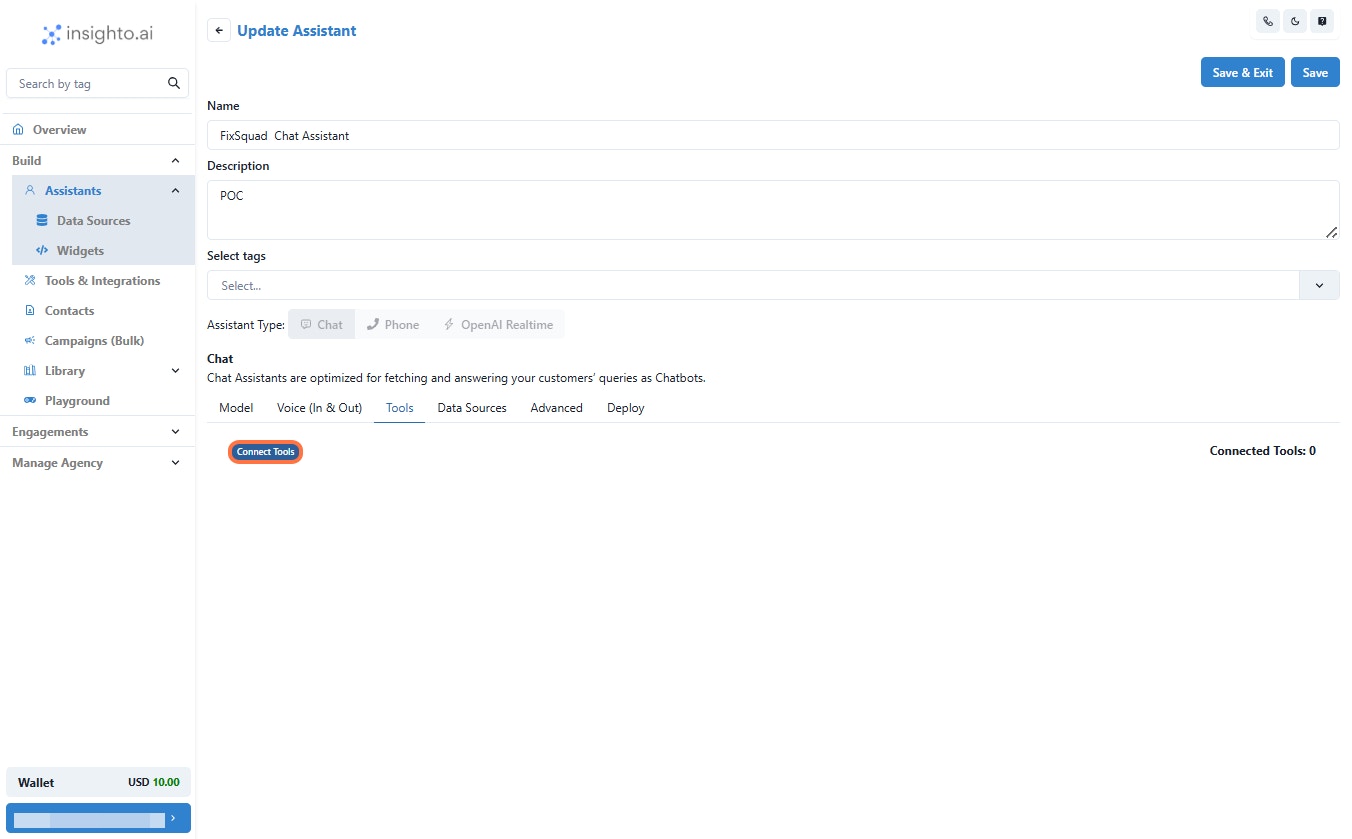
 13. **Click on Connect Tools**
Click on Connect Tools to link MCP Server Tool.
13. **Click on Connect Tools**
Click on Connect Tools to link MCP Server Tool.
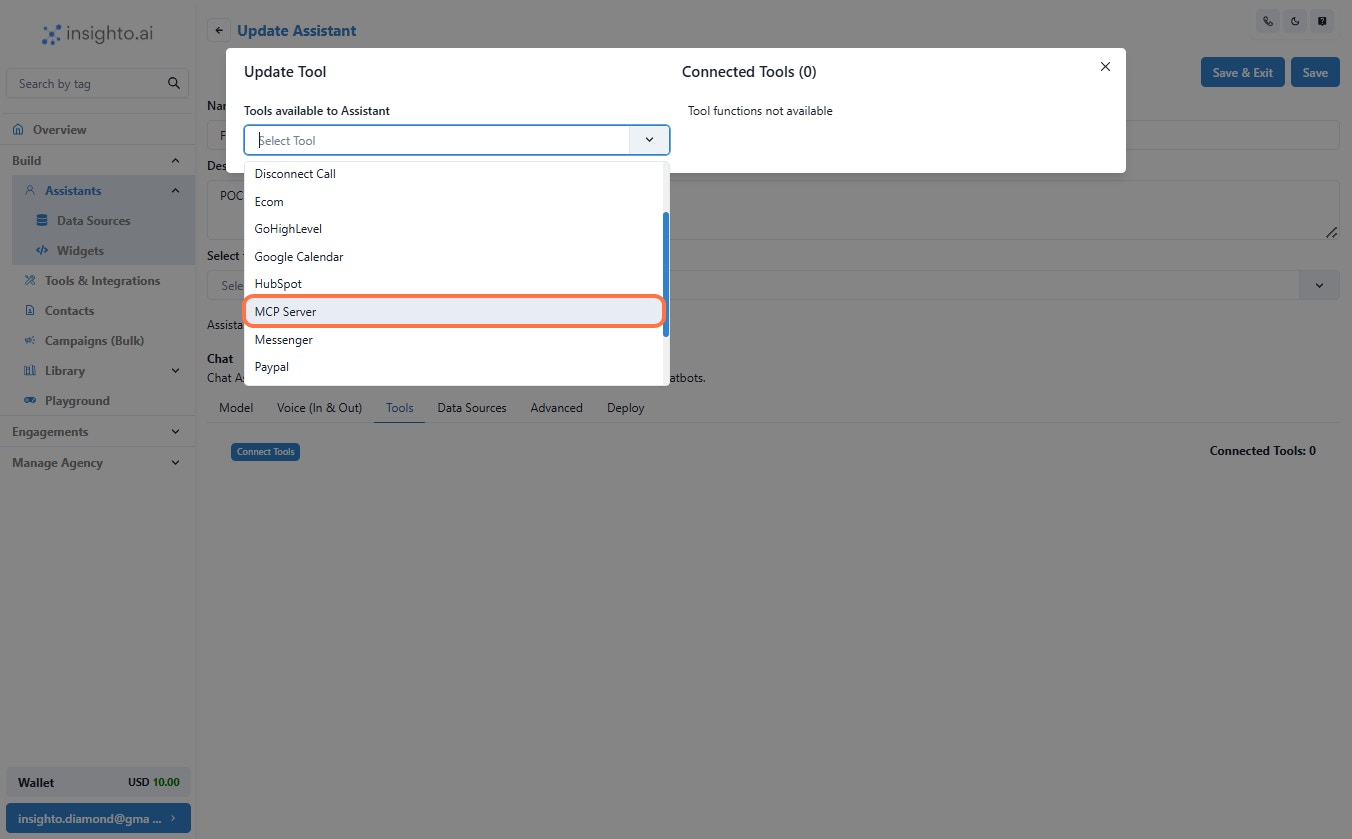
 14. **Click on MCP Server from the drop down**
Click on MCP Server to access and manage your Model Context Protocol server settings.
14. **Click on MCP Server from the drop down**
Click on MCP Server to access and manage your Model Context Protocol server settings.
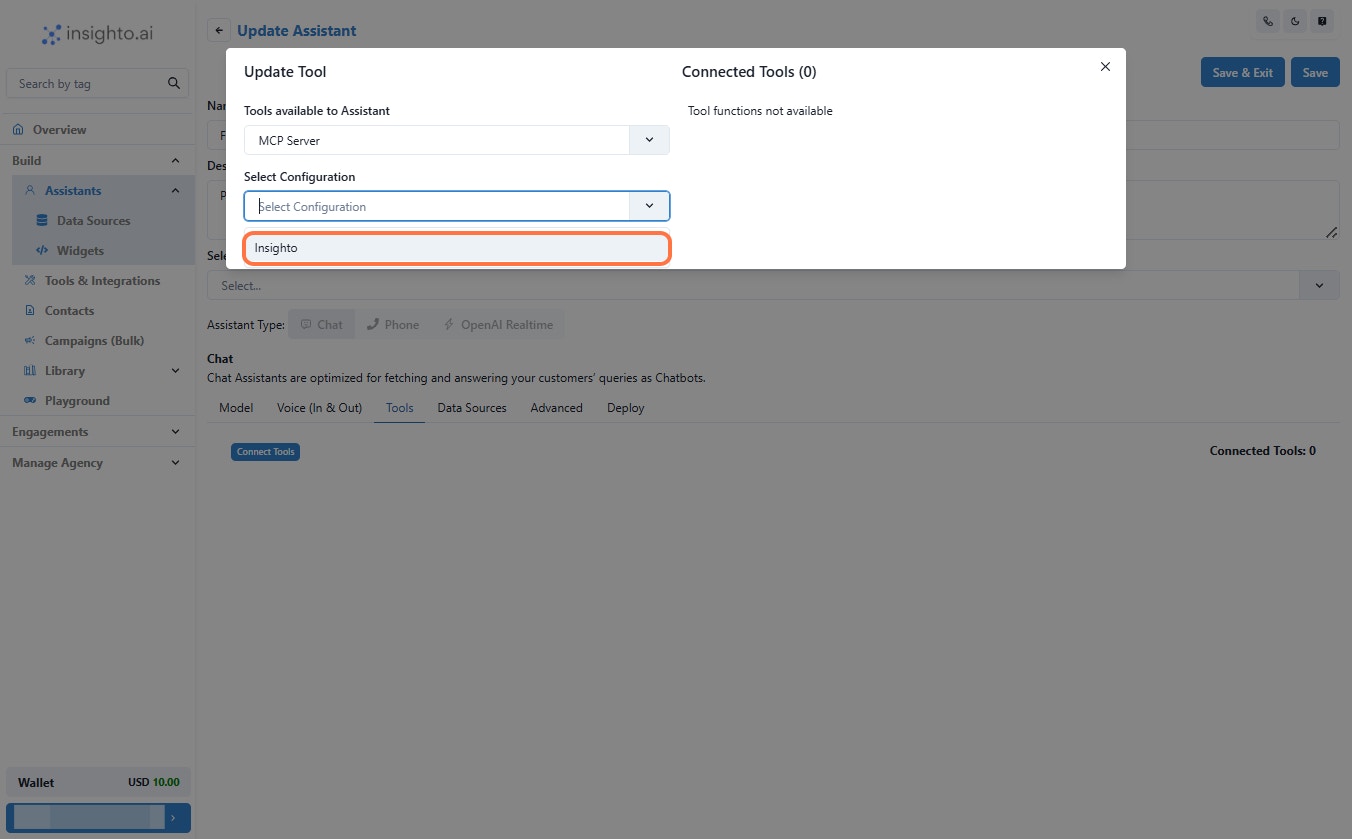
 15. **Select Configuration**
Select the MCP Server you have set up in earlier step. Click on close and make sure to save
your changes.
15. **Select Configuration**
Select the MCP Server you have set up in earlier step. Click on close and make sure to save
your changes.
 16. By following these steps—navigating through Tools & Integrations, setting up or
editing your MCP server, and managing your AI assistants—you can seamlessly
connect and configure your AI agents with the tools they need.
16. By following these steps—navigating through Tools & Integrations, setting up or
editing your MCP server, and managing your AI assistants—you can seamlessly
connect and configure your AI agents with the tools they need.