

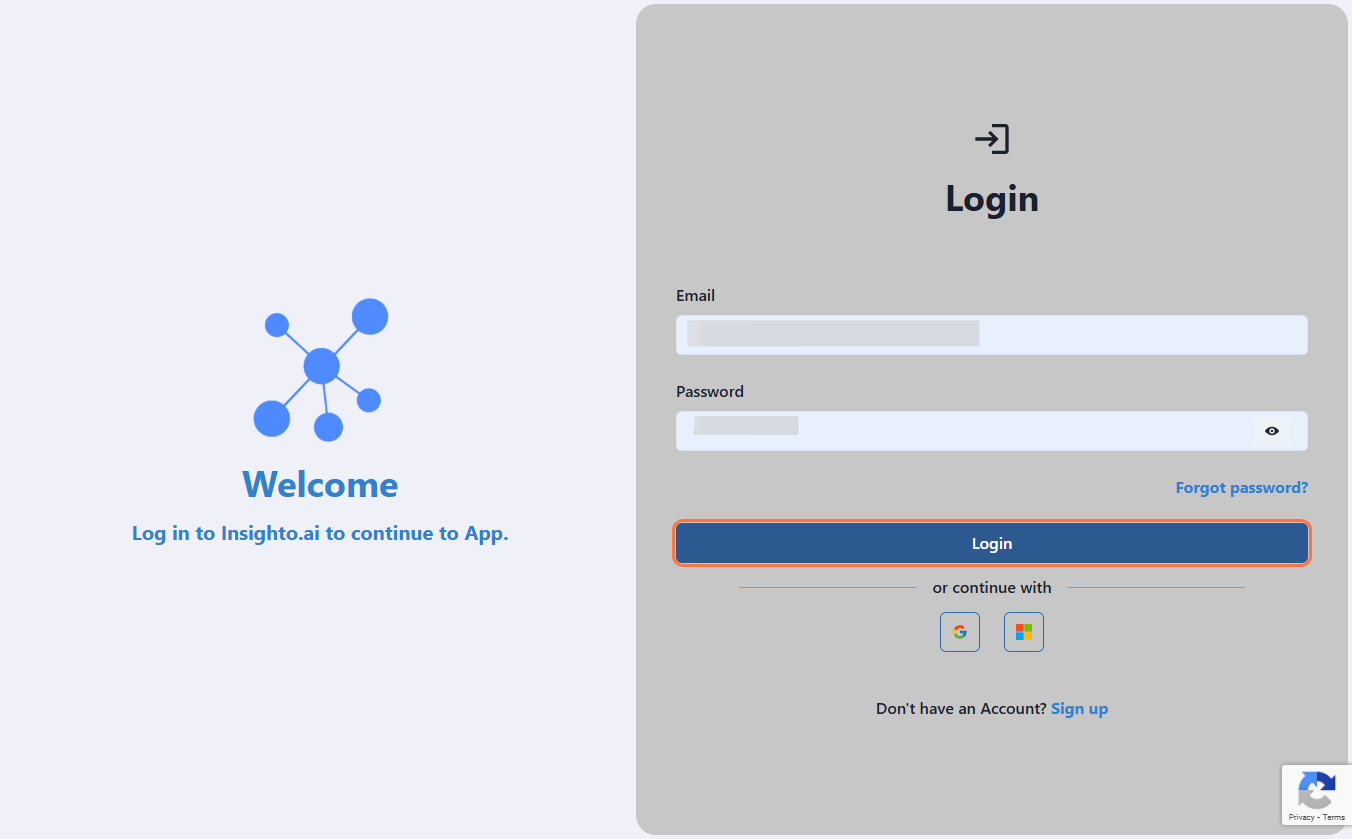
- Click on Login
- Go to Insighto Login and sign in using your credentials.
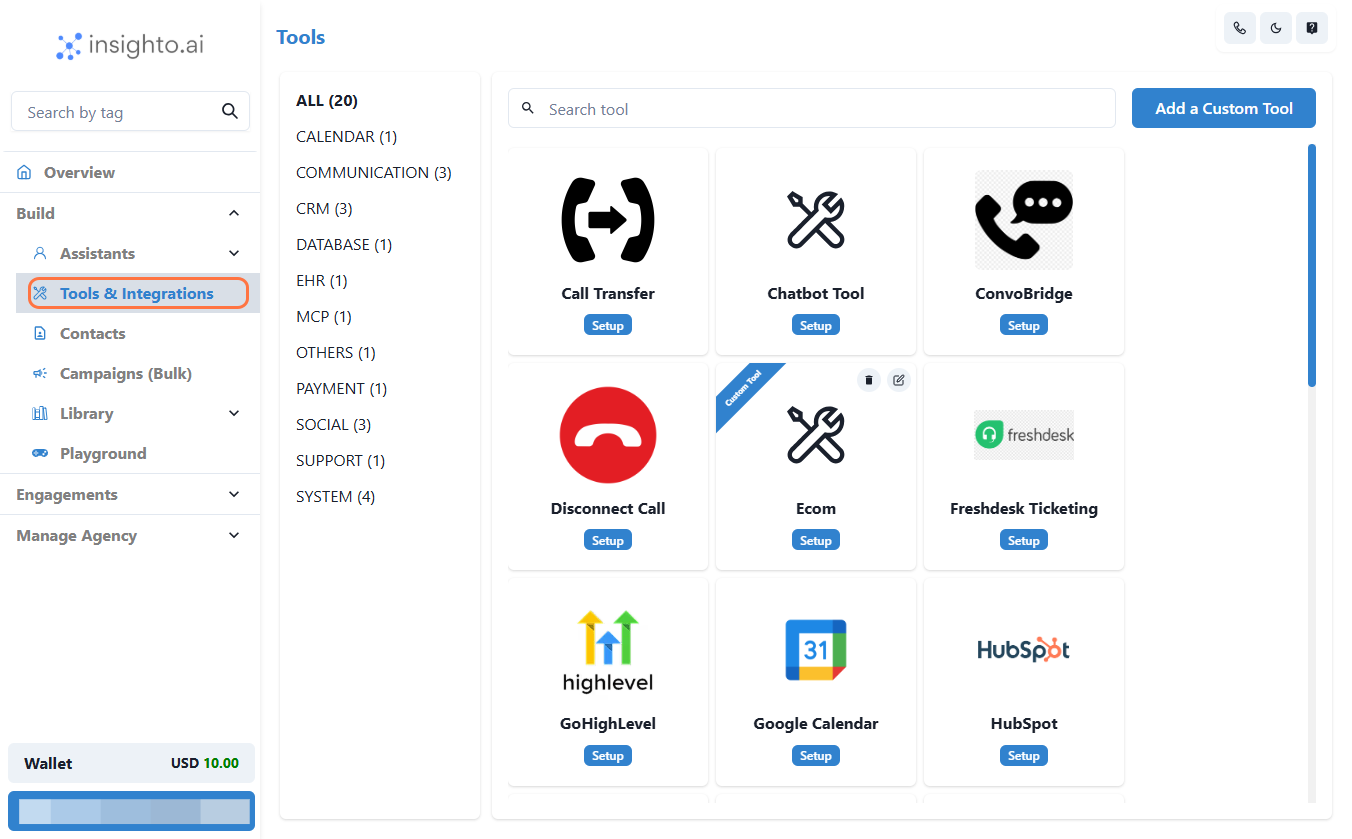
- Click on Tools & Integrations
- On the left-hand navigation menu, click on Tools & Integrations.
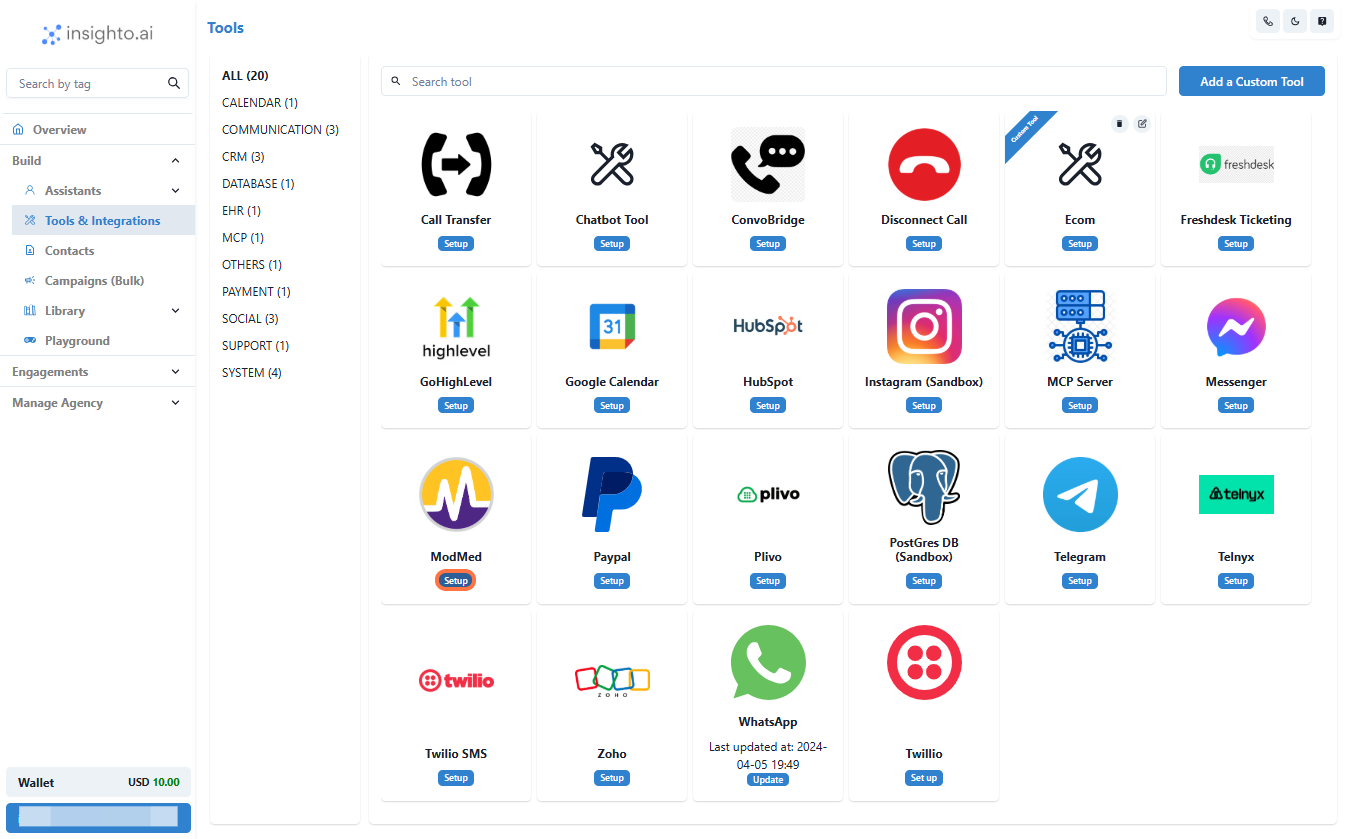
- Click on Setup
- Click the Setup button next to ModMed.
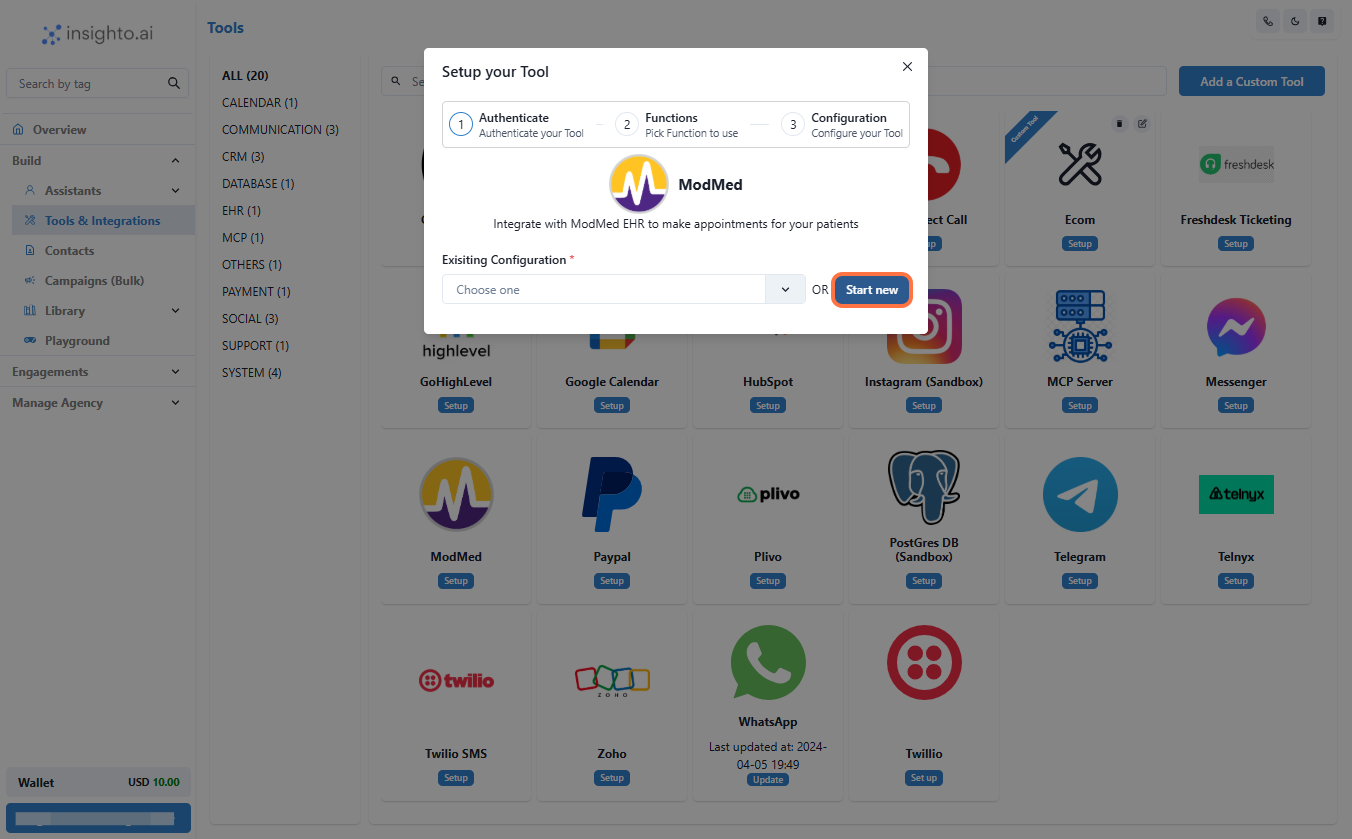
- Click on Start New
- A popup will appear. Click Start New to begin creating a new tool configuration.
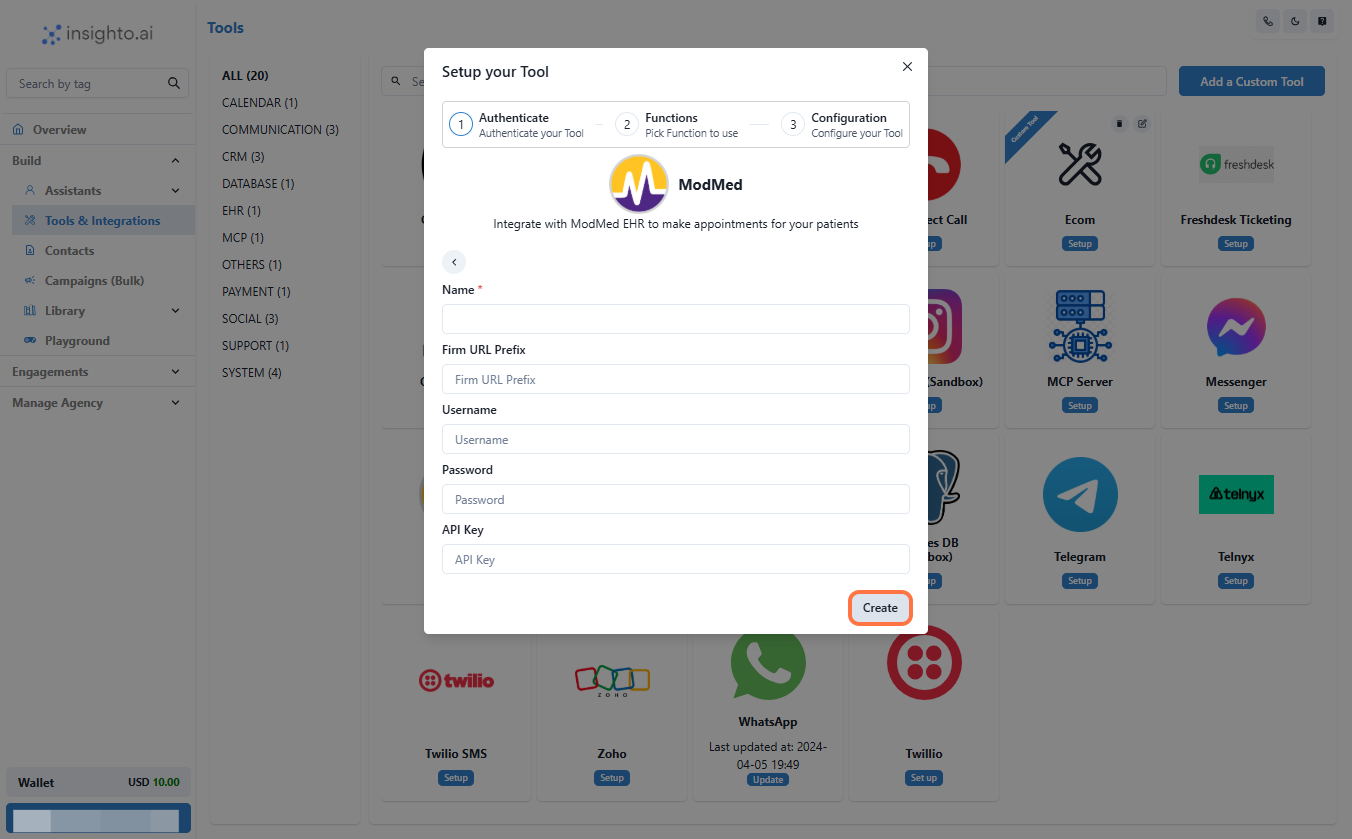
- Click on Create
- Fill in the required details such as the name of the configuration.
- Click Create.
- Click on Save
- Once done, click Save to store the setup.

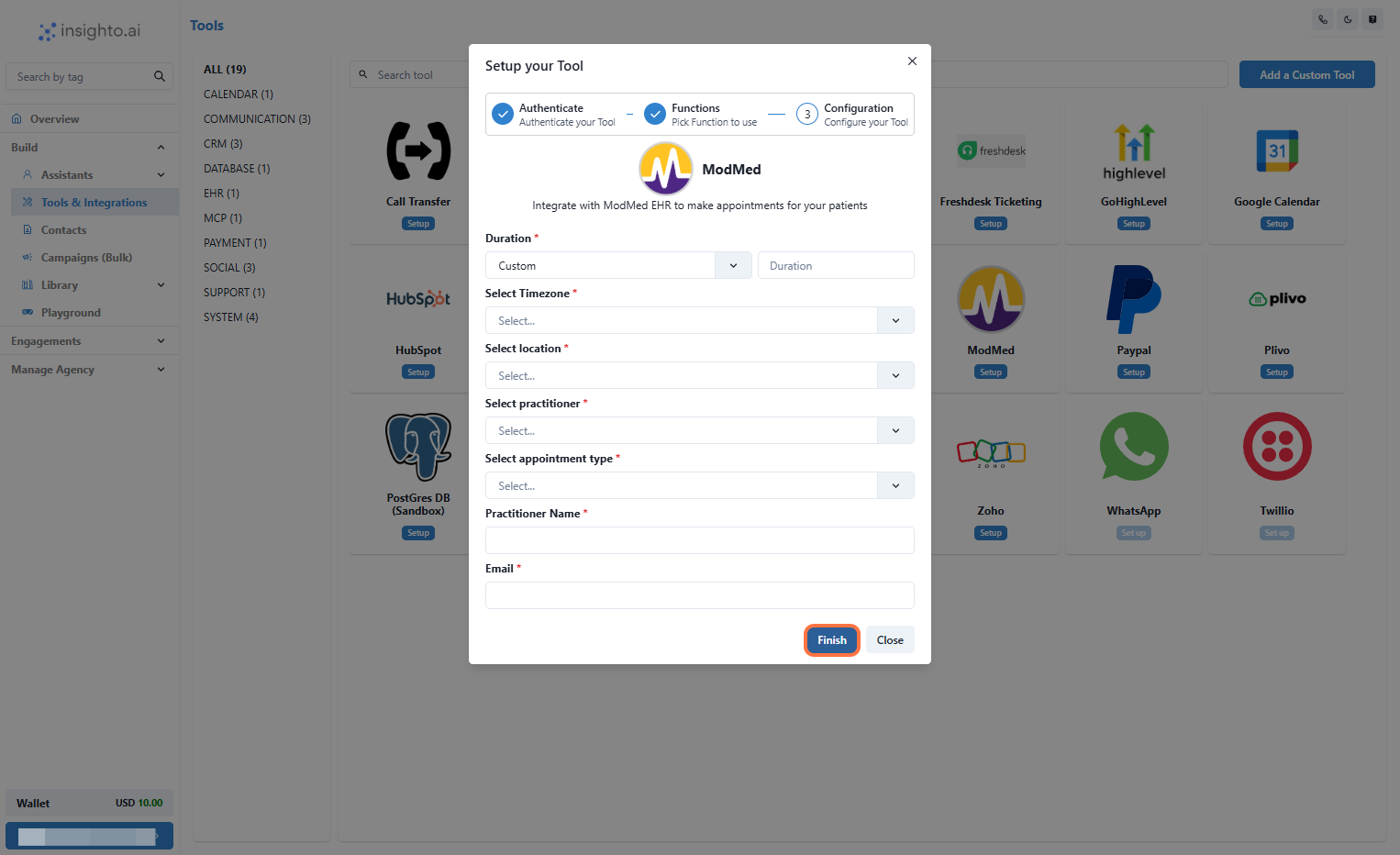
- Click on Finish
- Click Finish to finalize the ModMed tool setup.
- This will make the tool available for use inside assistants.
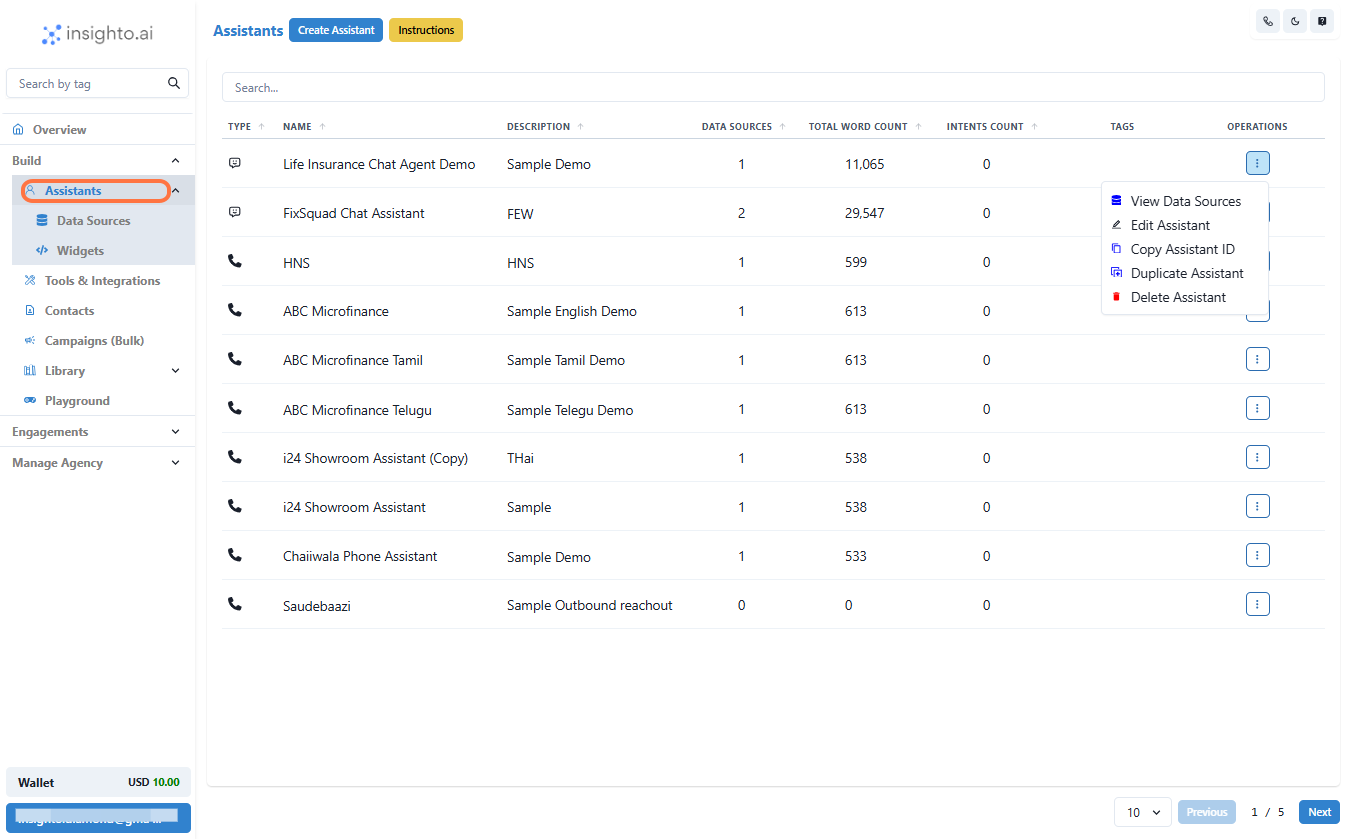
- Click on Assistants
- Click on Assistants to open your AI agents dashboard.
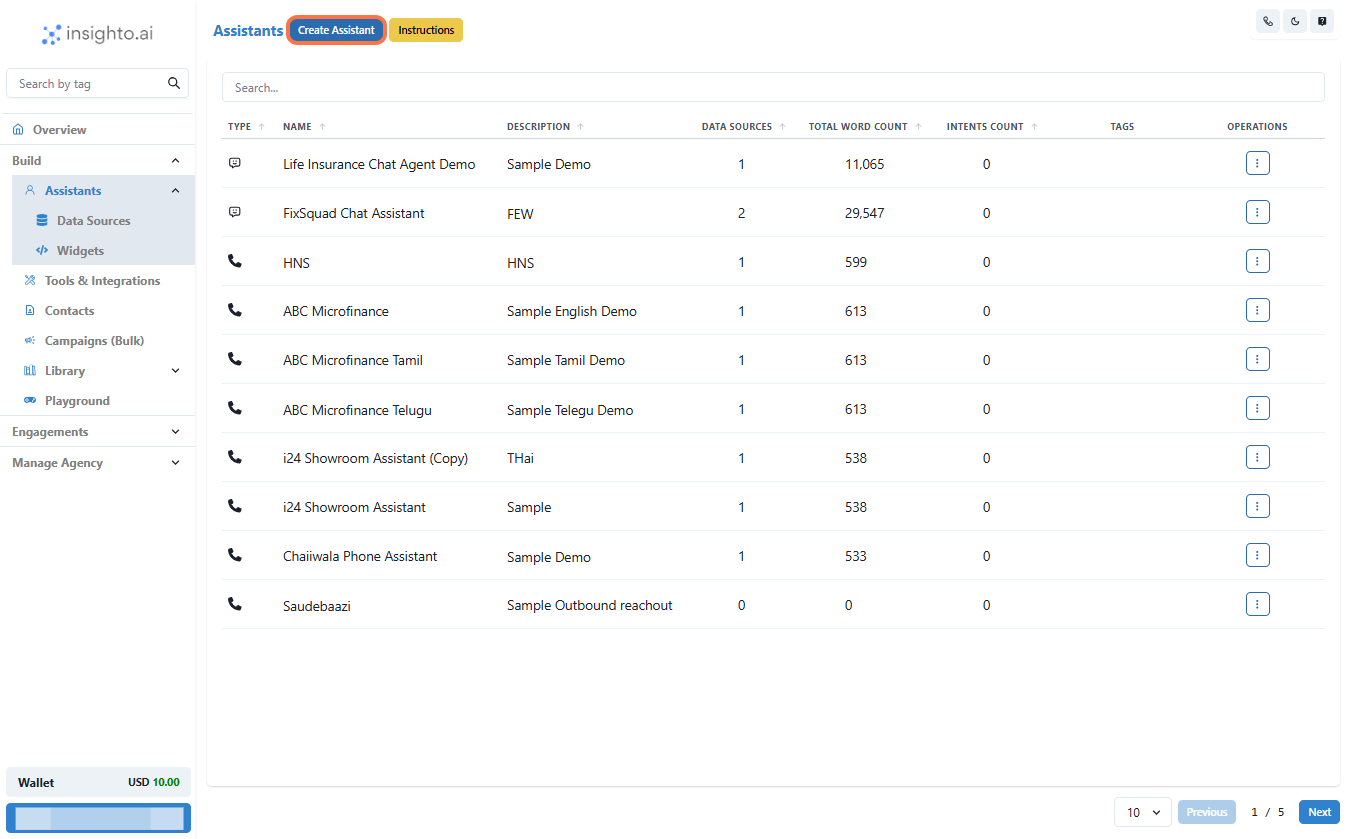
- Right-click on Create Assistant
- If needed, right-click to create a new assistant.
- Otherwise, choose an existing one to link with ModMed.
- Click on Tools
- Inside the assistant’s profile, click on the Tools tab to manage integrations.
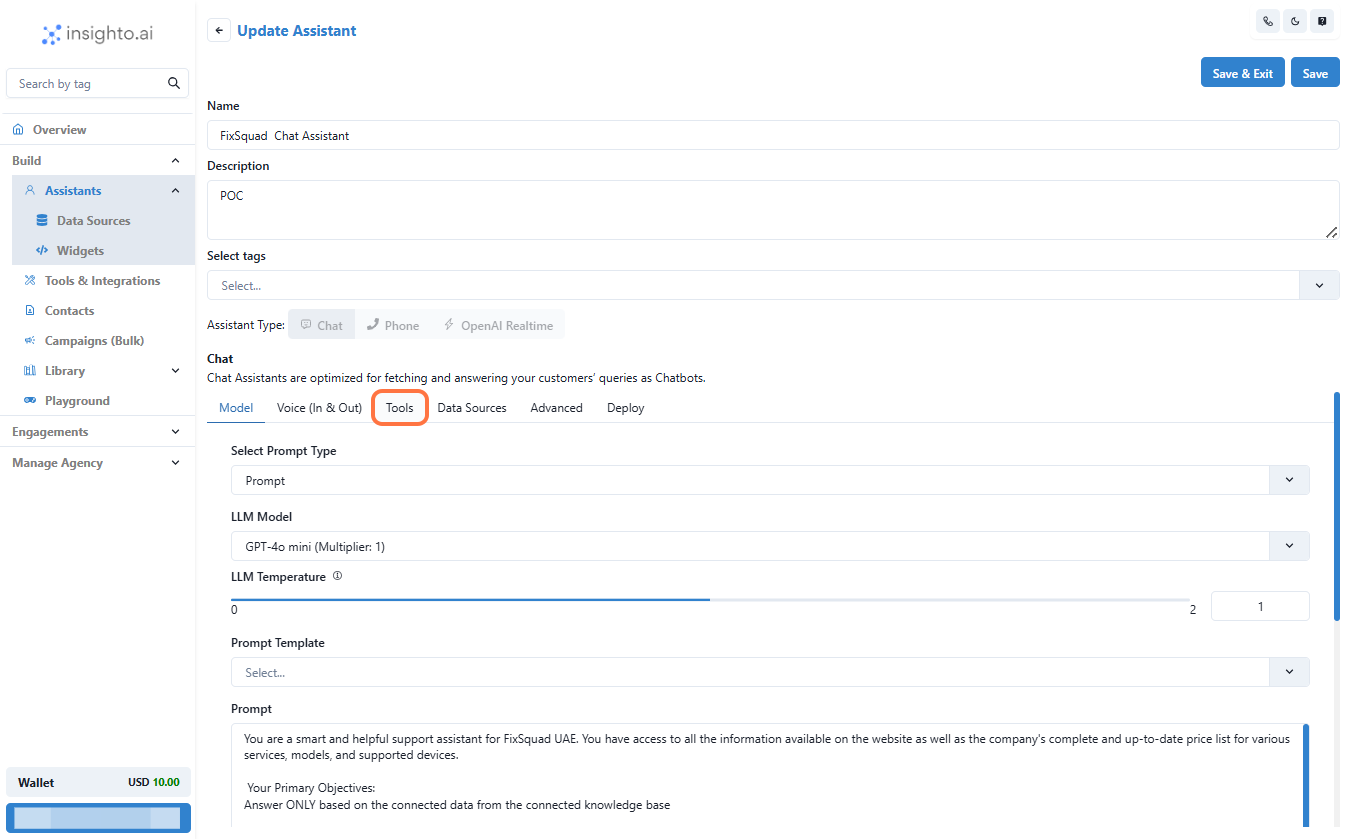
- Confirm You Are in Tools
- Verify that you are in the correct Tools section.

- Connect the Tool
- Right-click and choose Connect Tools.
- Then, select your configured ModMed tool from the dropdown.

- Click on Close
- Once the tool is connected, click Close to exit the setup.

- Your Assistant is Ready
- Your assistant is now ready to interact with ModMed based on your prompt logic and workflow setup.

💡 Never miss a step again. Visit Tango.ai